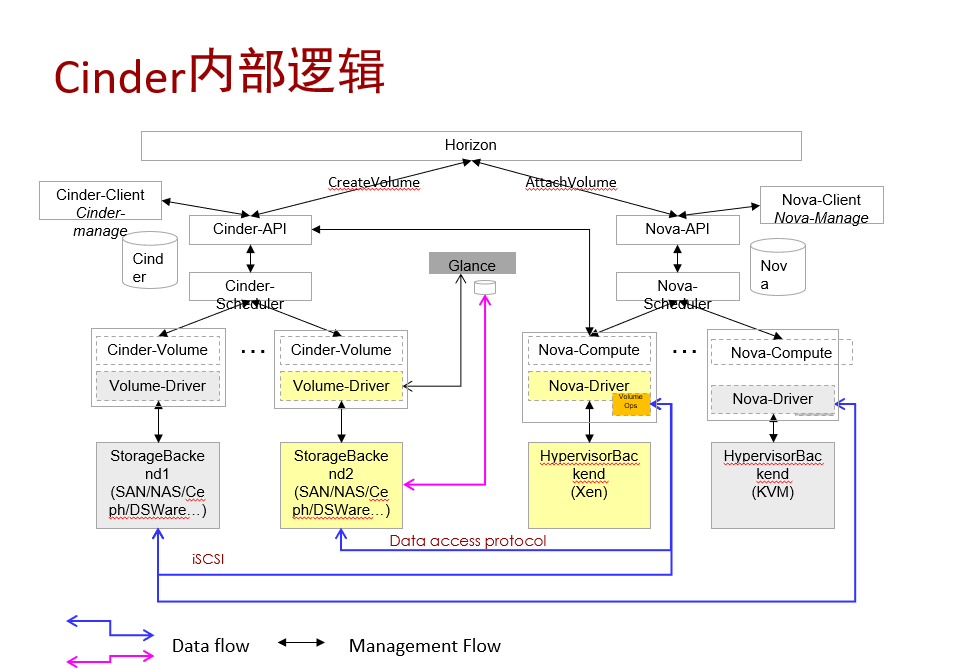
Architecture of Creating and Attaching Cinder Volumes#
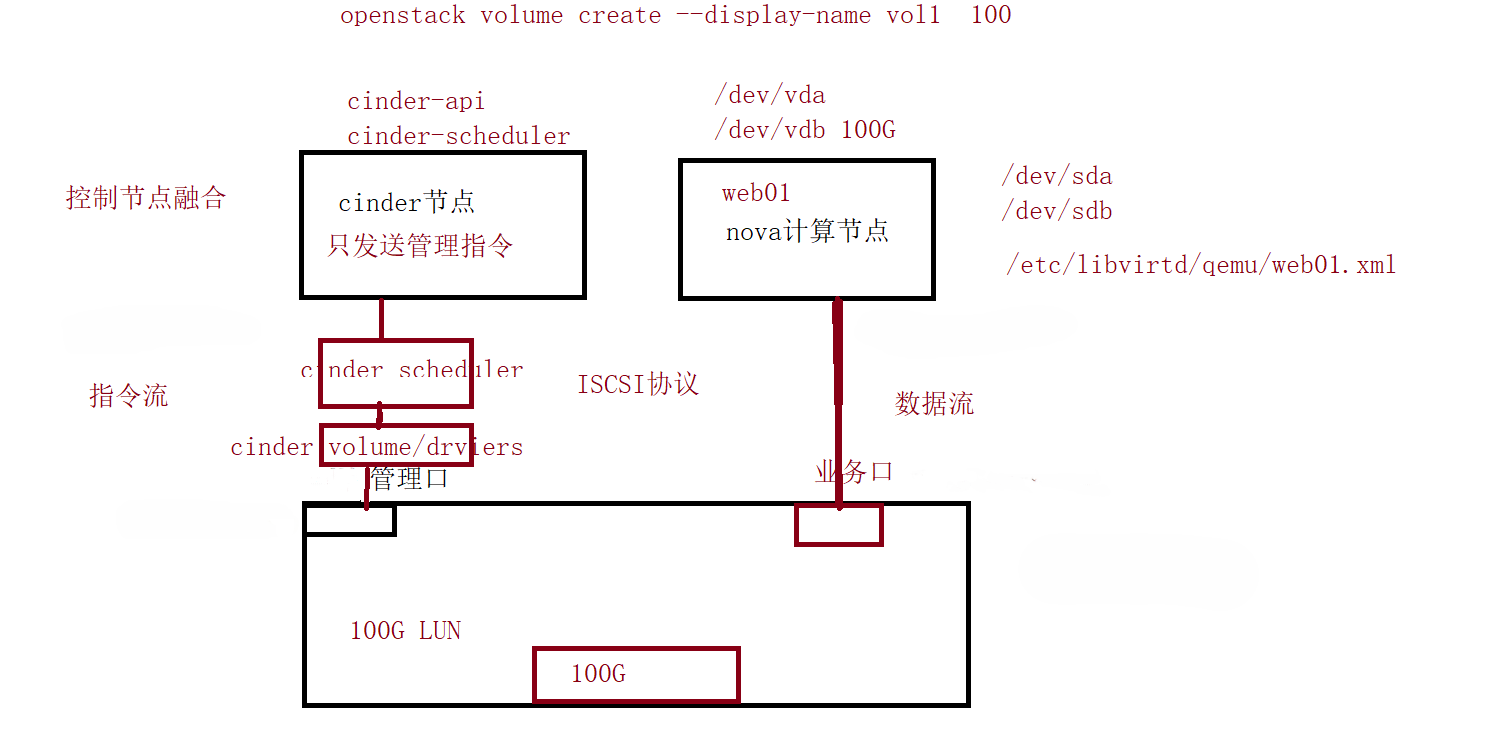
Volume creation is handled by the Cinder node (the controller node), while attaching volumes is handled by Nova
Local LVM + iSCSI Volume Storage Configuration#
- Specify in the answers.txt answer file that a Cinder volume should be created. Since the lab environment cannot provide dedicated storage hardware, the system uses local LVM as the Cinder backend
The system creates a cinder-volumes volume group by default, 50 GB in size (specified manually by the user)
This volume group is created on the controller node
 1
 2
 3
 4
 5
 6
 7
 8
 9
10
11
12
13
14
15
16
17
18
19
20
21
22
23
24
25
26
27
28
29
30
31
32
33
34
35
36
37
38
39
40
41
42
|
[root@Controller ~]# vgdisplay
  --- Volume group ---
  VG Name               cl
  System ID
  Format                lvm2
  Metadata Areas        1
  Metadata Sequence No  4
  VG Access             read/write
  VG Status             resizable
  MAX LV                0
  Cur LV                3
  Open LV               3
  Max PV                0
  Cur PV                1
  Act PV                1
  VG Size               <99.00 GiB
  PE Size               4.00 MiB
  Total PE              25343
  Alloc PE / Size       25343 / <99.00 GiB
  Free  PE / Size       0 / 0
  VG UUID               K2c9TX-MlXI-k9Ga-CPPm-3zuu-WNoK-mRuUEZ

  --- Volume group ---
  VG Name               cinder-volumes
  System ID
  Format                lvm2
  Metadata Areas        1
  Metadata Sequence No  4
  VG Access             read/write
  VG Status             resizable
  MAX LV                0
  Cur LV                1
  Open LV               0
  Max PV                0
  Cur PV                1
  Act PV                1
  VG Size               <51.50 GiB
  PE Size               4.00 MiB
  Total PE              13183
  Alloc PE / Size       12551 / <49.03 GiB
  Free  PE / Size       632 / <2.47 GiB
  VG UUID               nXhaeU-1PwG-is18-Ef2N-cK5R-9LRk-3ksn1k
|
- Call the LVM driver in /etc/cinder/cinder.conf so it recognizes the created volume group
- Treat this controller node as iSCSI storage (target) and share user-created volumes with the compute nodes over iSCSI
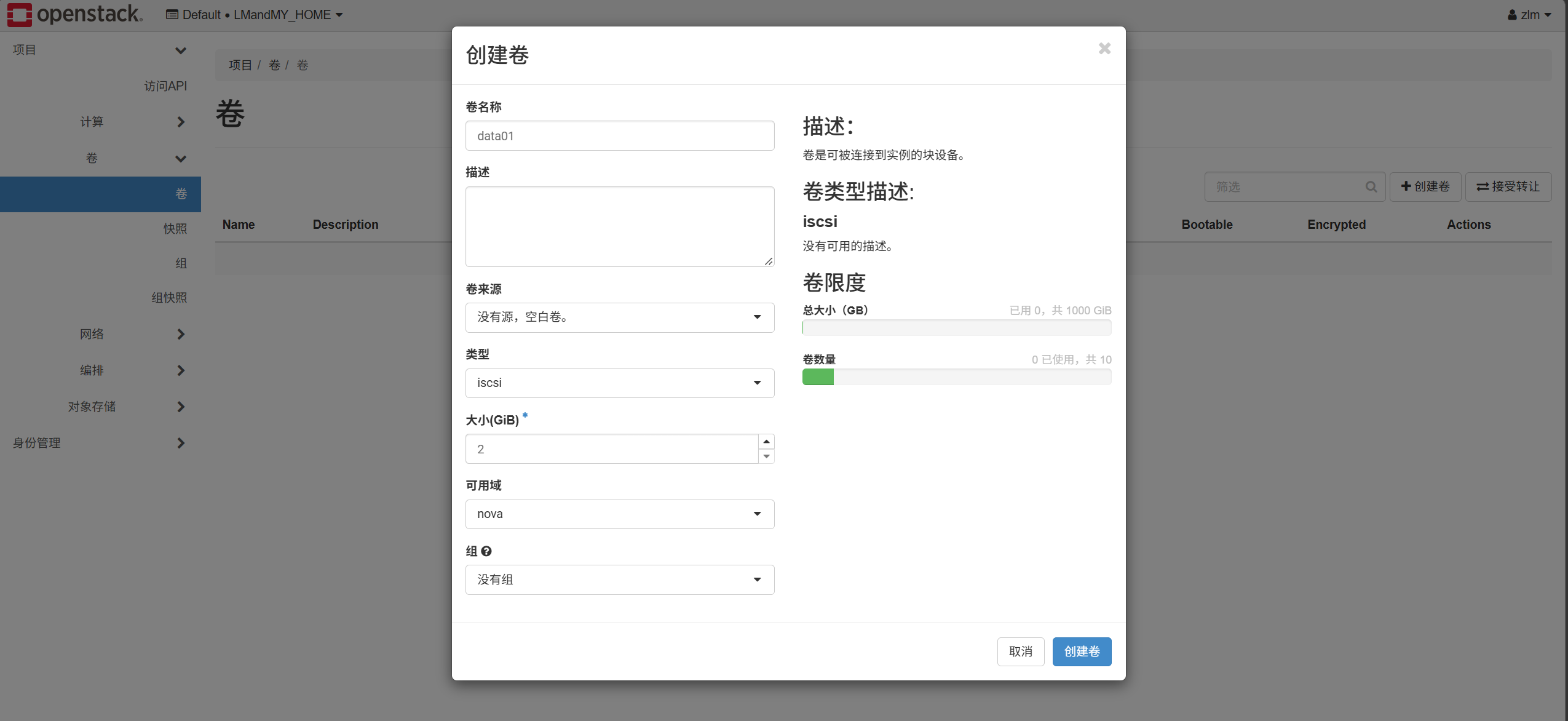
When a user creates a 2 GB cloud disk, the system automatically invokes the LVM driver to create a 2 GB LV inside the volume group
 1
 2
 3
 4
 5
 6
 7
 8
 9
10
11
12
13
14
15
16
17
18
19
20
21
22
23
24
25
26
27
28
29
30
31
32
33
34
35
36
37
38
39
40
41
42
43
44
45
46
47
48
49
50
51
52
53
54
55
56
57
58
59
60
61
62
63
64
65
66
67
68
69
70
71
72
73
74
75
76
77
78
79
80
81
82
83
84
85
86
87
88
89
90
|
[root@Controller ~]# lvdisplay
  --- Logical volume ---
  LV Path                /dev/cl/swap
  LV Name                swap
  VG Name                cl
  LV UUID                f9Aqve-GgxT-gQNg-v0W0-ogyz-1cJT-WIEOMw
  LV Write Access        read/write
  LV Creation host, time localhost.localdomain, 2026-06-27 05:28:10 +0800
  LV Status              available
  # open                 2
  LV Size                <7.88 GiB
  Current LE             2016
  Segments               1
  Allocation             inherit
  Read ahead sectors     auto
  - currently set to     8192
  Block device           253:1

  --- Logical volume ---
  LV Path                /dev/cl/home
  LV Name                home
  VG Name                cl
  LV UUID                5f8ntZ-4pxS-yYFl-3BHC-qKaW-pFsi-2ZGkHg
  LV Write Access        read/write
  LV Creation host, time localhost.localdomain, 2026-06-27 05:28:10 +0800
  LV Status              available
  # open                 1
  LV Size                29.89 GiB
  Current LE             7653
  Segments               1
  Allocation             inherit
  Read ahead sectors     auto
  - currently set to     8192
  Block device           253:2

  --- Logical volume ---
  LV Path                /dev/cl/root
  LV Name                root
  VG Name                cl
  LV UUID                32JpBQ-Ld4z-0bLU-jHuG-iMRC-WLoO-WtcrnT
  LV Write Access        read/write
  LV Creation host, time localhost.localdomain, 2026-06-27 05:28:10 +0800
  LV Status              available
  # open                 1
  LV Size                <61.23 GiB
  Current LE             15674
  Segments               1
  Allocation             inherit
  Read ahead sectors     auto
  - currently set to     8192
  Block device           253:0

  --- Logical volume ---
  LV Name                cinder-volumes-pool
  VG Name                cinder-volumes
  LV UUID                ughXDw-Fl7B-Mbo9-vsHS-OvMy-Pi60-E2GPaa
  LV Write Access        read/write (activated read only)
  LV Creation host, time Controller, 2026-07-08 16:03:29 +0800
  LV Pool metadata       cinder-volumes-pool_tmeta
  LV Pool data           cinder-volumes-pool_tdata
  LV Status              available
  # open                 0
  LV Size                <48.93 GiB
  Allocated pool data    0.00%
  Allocated metadata     10.44%
  Current LE             12525
  Segments               1
  Allocation             inherit
  Read ahead sectors     auto
  - currently set to     8192
  Block device           253:6

  --- Logical volume ---
  LV Path                /dev/cinder-volumes/volume-3561d822-2929-4b47-87c5-25f769f8f44e
  LV Name                volume-3561d822-2929-4b47-87c5-25f769f8f44e
  VG Name                cinder-volumes
  LV UUID                WoSBug-zWc4-wVYn-39xk-MWVw-z3Pj-UOdvok
  LV Write Access        read/write
  LV Creation host, time Controller, 2026-10-05 15:56:30 +0800
  LV Pool name           cinder-volumes-pool
  LV Status              available
  # open                 0
  LV Size                2.00 GiB
  Mapped size            0.00%
  Current LE             512
  Segments               1
  Allocation             inherit
  Read ahead sectors     auto
  - currently set to     8192
  Block device           253:7
|
-
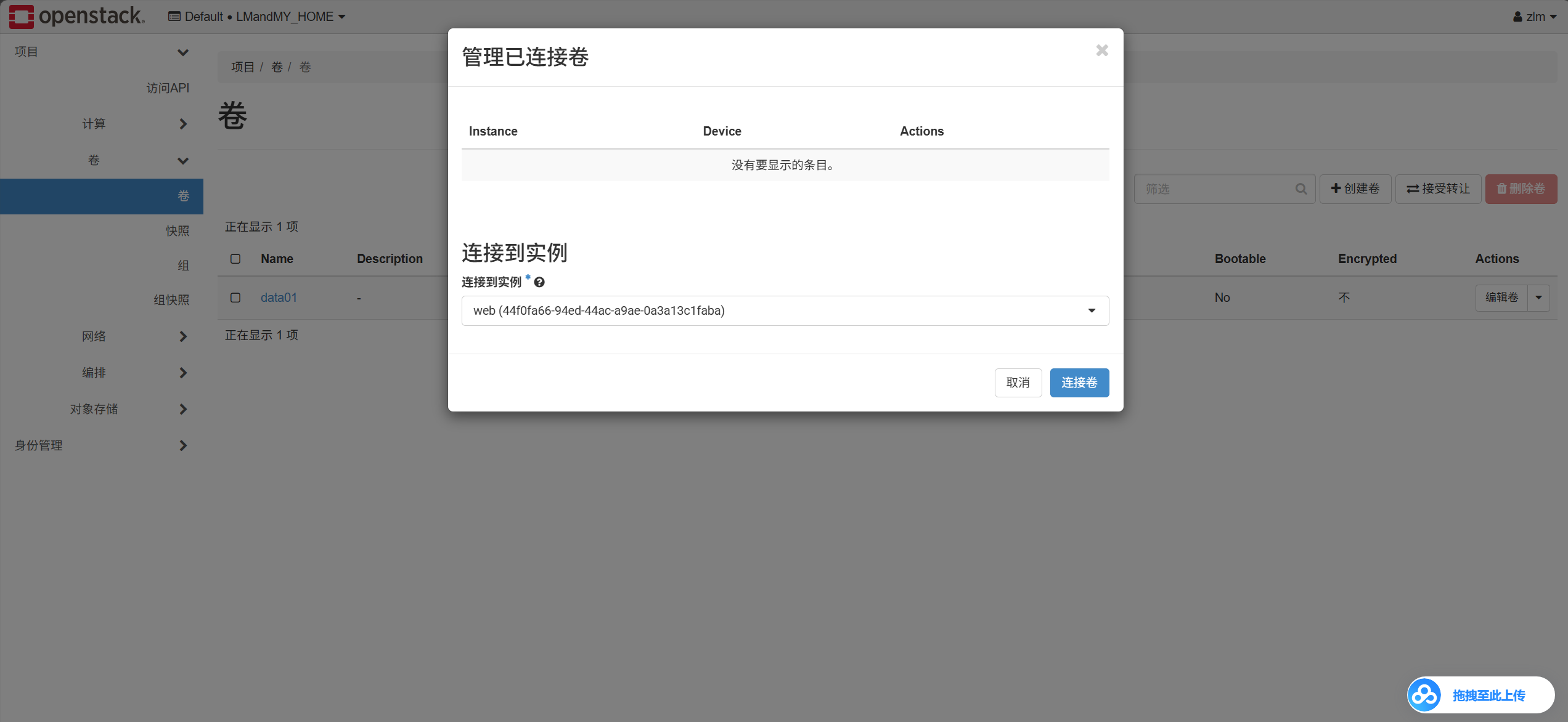
When the user attaches this volume to the cloud server web01, Cinder sends a command to the storage side; the storage side then shares that LV with the compute host, so the compute host recognizes the disk, a new 2 GB disk appears, and libvirt invokes an XML file to add it to the cloud server
 1
 2
 3
 4
 5
 6
 7
 8
 9
10
11
12
13
14
15
16
17
18
19
20
21
22
23
24
25
26
27
28
29
30
31
32
33
34
35
36
37
38
39
40
41
42
43
44
45
46
47
48
49
50
51
52
|
[root@Controller ~]# systemctl status target
● target.service - Restore LIO kernel target configuration
   Loaded: loaded (/usr/lib/systemd/system/target.service; enabled; vendor preset: disabled)
   Active: active (exited) since Mon 2026-10-05 14:18:51 CST; 1h 30min ago
  Process: 1873 ExecStart=/usr/bin/targetctl restore (code=exited, status=0/SUCCESS)
 Main PID: 1873 (code=exited, status=0/SUCCESS)
    Tasks: 0 (limit: 36406)
   Memory: 0B
   CGroup: /system.slice/target.service

Oct 05 14:18:50 Controller systemd[1]: Starting Restore LIO kernel target configuration...
Oct 05 14:18:51 Controller target[1873]: No saved config file at /etc/target/saveconfig.json, ok, exiting
Oct 05 14:18:51 Controller systemd[1]: Started Restore LIO kernel target configuration.
[root@Controller ~]# targetcli
targetcli shell version 2.1.53
Copyright 2011-2013 by Datera, Inc and others.
For help on commands, type 'help'.

/> ls
o- / ......................................................................................................................... [...]
  o- backstores .............................................................................................................. [...]
  | o- block .................................................................................................. [Storage Objects: 1]
  | | o- iqn.2010-10.org.openstack:volume-3561d822-2929-4b47-87c5-25f769f8f44e  [/dev/cinder-volumes/volume-3561d822-2929-4b47-87c5-25f769f8f44e (2.0GiB) write-thru activated]
  | |   o- alua ................................................................................................... [ALUA Groups: 1]
  | |     o- default_tg_pt_gp ....................................................................... [ALUA state: Active/optimized]
  | o- fileio ................................................................................................. [Storage Objects: 0]
  | o- pscsi .................................................................................................. [Storage Objects: 0]
  | o- ramdisk ................................................................................................ [Storage Objects: 0]
  o- iscsi ............................................................................................................ [Targets: 1]
  | o- iqn.2010-10.org.openstack:volume-3561d822-2929-4b47-87c5-25f769f8f44e ............................................. [TPGs: 1]
  |   o- tpg1 .......................................................................................... [no-gen-acls, auth per-acl]
  |     o- acls .......................................................................................................... [ACLs: 1]
  |     | o- iqn.1994-05.com.redhat:1220933cde3c ...................................................... [1-way auth, Mapped LUNs: 1]
  |     |   o- mapped_lun0 ................. [lun0 block/iqn.2010-10.org.openstack:volume-3561d822-2929-4b47-87c5-25f769f8f44e (rw)]
  |     o- luns .......................................................................................................... [LUNs: 1]
  |     | o- lun0  [block/iqn.2010-10.org.openstack:volume-3561d822-2929-4b47-87c5-25f769f8f44e (/dev/cinder-volumes/volume-3561d822-2929-4b47-87c5-25f769f8f44e) (default_tg_pt_gp)]
  |     o- portals .................................................................................................... [Portals: 1]
  |       o- 192.168.100.10:3260 .............................................................................................. [OK]
  o- loopback ......................................................................................................... [Targets: 0]
/>
[root@Compute ~]# cat /etc/iscsi/initiatorname.iscsi
InitiatorName=iqn.1994-05.com.redhat:1220933cde3c
[root@Compute ~]# iscsiadm -m session
tcp: [1] 192.168.100.10:3260,1 iqn.2010-10.org.openstack:volume-3561d822-2929-4b47-87c5-25f769f8f44e (non-flash)
[root@Compute ~]# vim /etc/libvirt/qemu/instance-00000002.xml
    <disk type='block' device='disk'>
      <driver name='qemu' type='raw' cache='none' io='native'/>
      <source dev='/dev/sda'/>
      <target dev='vdb' bus='virtio'/>
      <serial>3561d822-2929-4b47-87c5-25f769f8f44e</serial>
      <address type='pci' domain='0x0000' bus='0x00' slot='0x07' function='0x0'/>
    </disk>
|
Storage-side configuration
- Install the targetcli package and start the service
1
2
3
4
5
6
7
8
9
|
#yum -y install targetcli
#systemctl enable target --now
#targetcli
/> /backstores/block create dev=/dev/sdb1 name=data01
/> /iscsi create iqn.2024.com.storage:disk
/> /iscsi/ iqn.2024.com.storage:disk/tpg1/acls create iqn.1994-05.com.redhat:b4ff583759f4
/>/iscsi/ iqn.2024.com.storage:disk /tpg1/luns create data01
/> /iscsi/ iqn.2024.com.storage:disk/tpg1/portals create 192.168.100.10:3260
/> saveconfig
|
- Target, service server, storage client
1
2
3
|
[root@Compute ~]# iscsiadm -m discovery -t st -p 192.168.100.10
[root@Compute ~]# iscsiadm -m node -T iqn.2024.com.storage:disk -p 192.168.100.10:3260 -l
#fdisk -l
|
Connecting Cinder to NFS Storage#
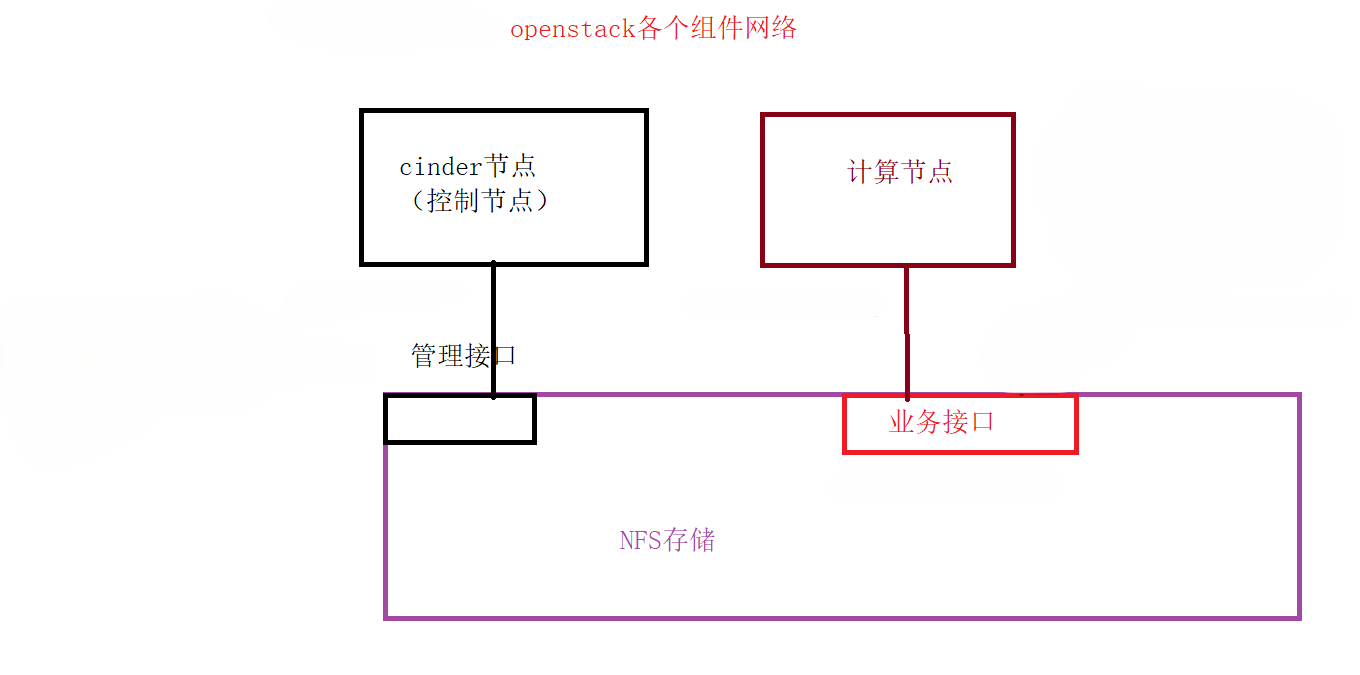
Plan and configure the network according to the diagram above
 1
 2
 3
 4
 5
 6
 7
 8
 9
10
11
12
13
14
15
16
17
18
19
20
21
22
23
|
#配置网络
[root@storage ~]# nmcli connection modify ens160 ipv4.addresses 192.168.200.20/24 ipv4.method manual autoconnect yes
[root@storage ~]# nmcli connection down ens160 ; nmcli connection up ens160
[root@storage ~]# cd /etc/sysconfig/network-scripts/
[root@storage network-scripts]# cp ifcfg-ens160 ifcfg-ens192
[root@storage network-scripts]# cat ifcfg-ens192
# Generated by parse-kickstart
TYPE=Ethernet
DEVICE=ens192
ONBOOT=yes
BOOTPROTO=none
NAME=ens192
[root@storage ~]# nmcli connection reload
[root@storage ~]# nmcli connection modify ens192 ipv4.addresses 192.168.8.20/24 ipv4.method manual autoconnect yes
[root@storage ~]# nmcli connection down ens192 ; nmcli connection up ens192
#安装配置安装NFS服务
[root@storage ~]# yum install -y nfs-utils rpcbind
[root@storage ~]# mkdir /storage
[root@storage ~]# cat /etc/exports
/storage   192.168.200.0/24(rw,sync,no_root_squash)
/storage   192.168.8.0/24(rw,sync,no_root_squash)
[root@storage ~]# systemctl enable nfs-server --now
[root@storage ~]# systemctl enable rpcbind --now
|
1
2
3
4
5
6
7
8
|
[root@Controller ~]# cat /etc/sysconfig/network-scripts/ifcfg-ens192
TYPE=Ethernet
NAME=ens192
DEVICE=ens192
ONBOOT=yes
IPADDR=192.168.8.10
NETMASK=255.255.255.0
[root@Controller ~]# systemctl restart network
|
1
2
|
[root@Compute ~]# nmcli connection modify ens192 ipv4.addresses 192.168.200.10/24 autoconnect yes ipv4.method manual
[root@Compute ~]# nmcli connection down ens192 ; nmcli connection up ens192
|
 1
 2
 3
 4
 5
 6
 7
 8
 9
10
|
[root@Controller ~]# vim /etc/cinder/cinder.conf
410 default_volume_type=nfs
436 enabled_backends=lvm,nfs666
[nfs666]
volume_backend_name=nfsdata
volume_driver=cinder.volume.drivers.nfs.NfsDriver
nfs_shares_config = /etc/cinder/nfs_shares
[root@Controller ~]# cat /etc/cinder/nfs_shares
storage:/storage
[root@Controller ~]# systemctl restart openstack-cinder-*
|
Cinder node
1
2
|
[root@Controller ~]# cat /etc/hosts   ####额外增加一条记录
192.168.8.20 storage
|
Compute node
1
2
3
4
5
6
|
[root@Compute ~]# cat /etc/hosts
192.168.200.20 storage
[root@Controller ~]# source keystonerc_admin
[root@Controller ~(keystone_admin)]# cinder type-create nfs
[root@Controller ~(keystone_admin)]# cinder type-key nfs set volume_backend_name=nfsdata
[root@Controller ~(keystone_admin)]# systemctl restart openstack-cinder-*
|
-
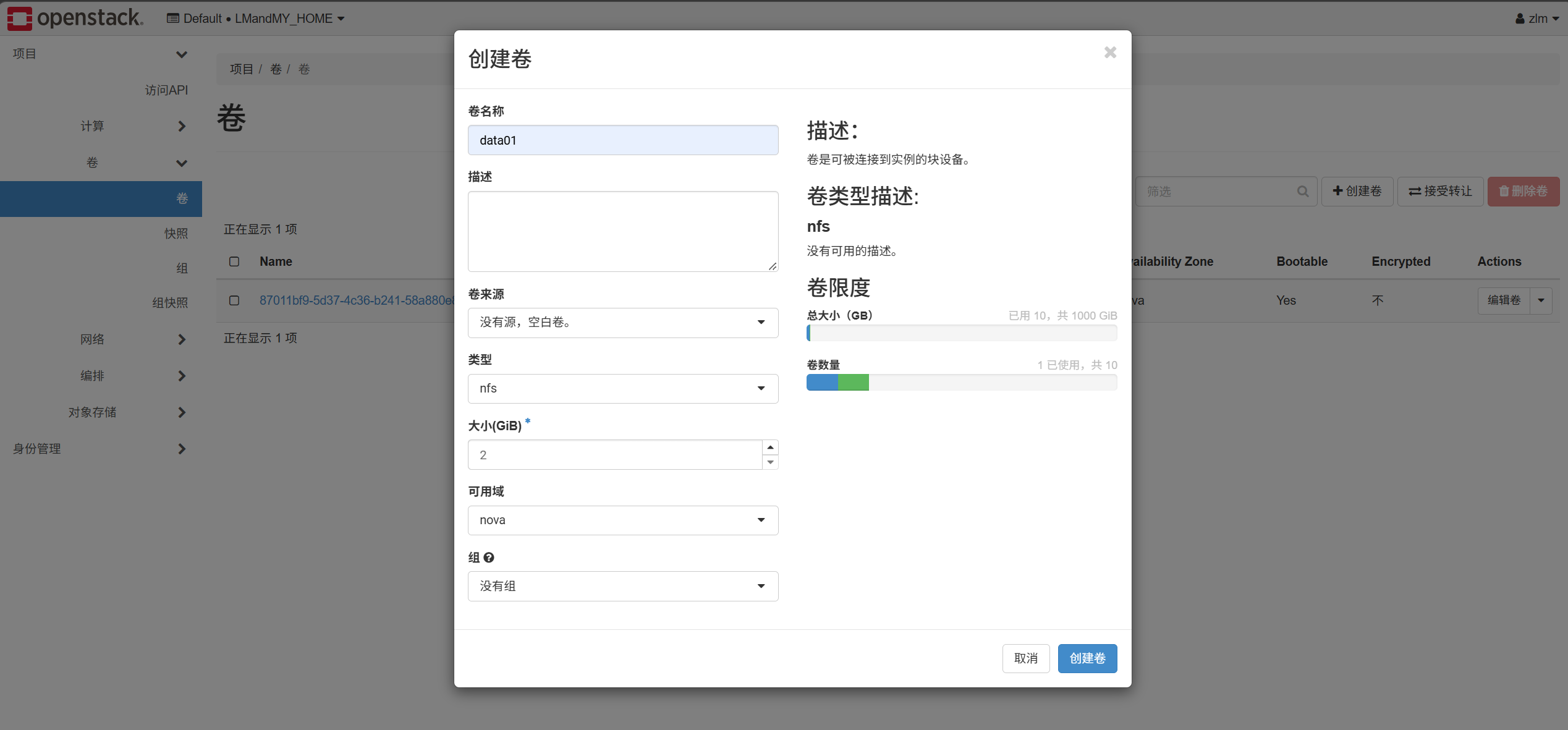
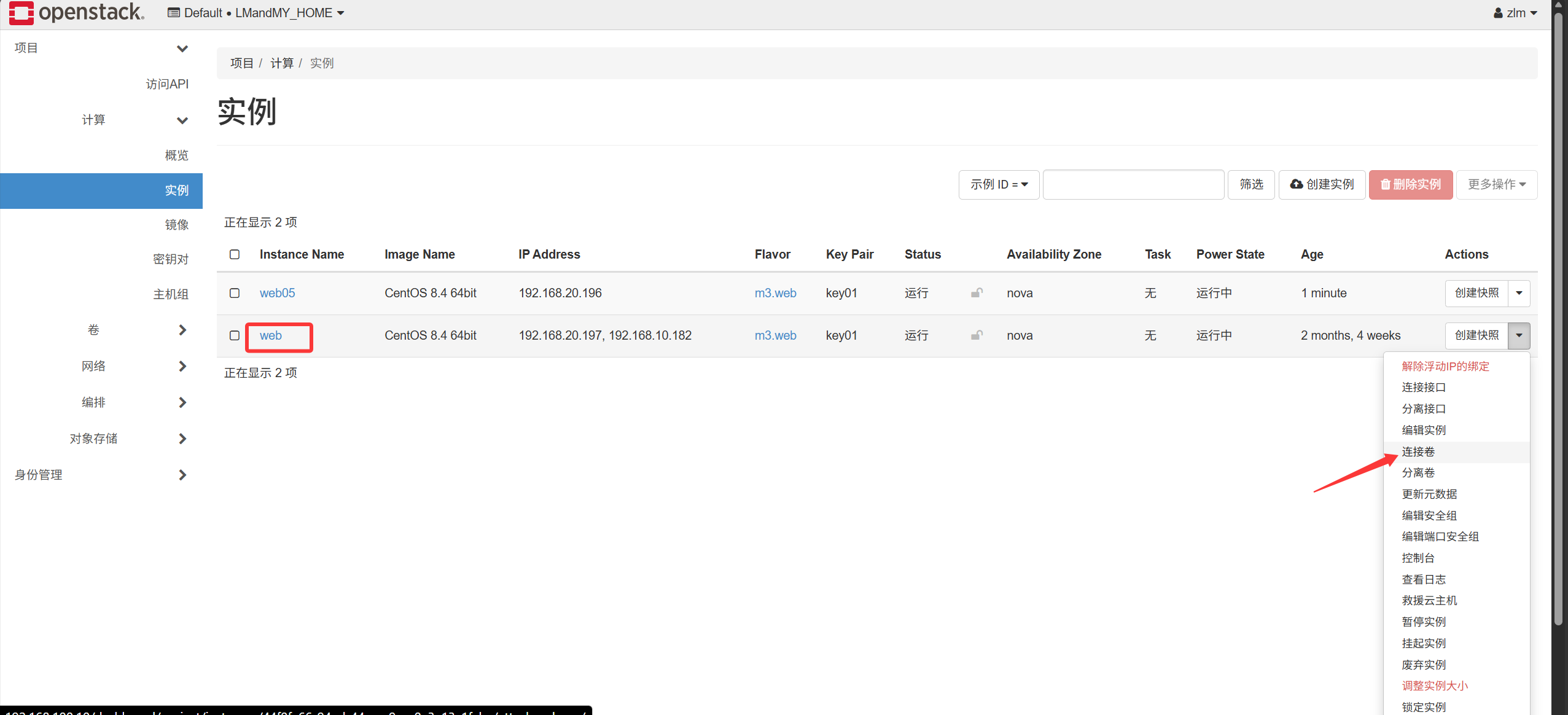
In the OpenStack web UI, create a volume, choose nfs, and attach that volume to the cloud server
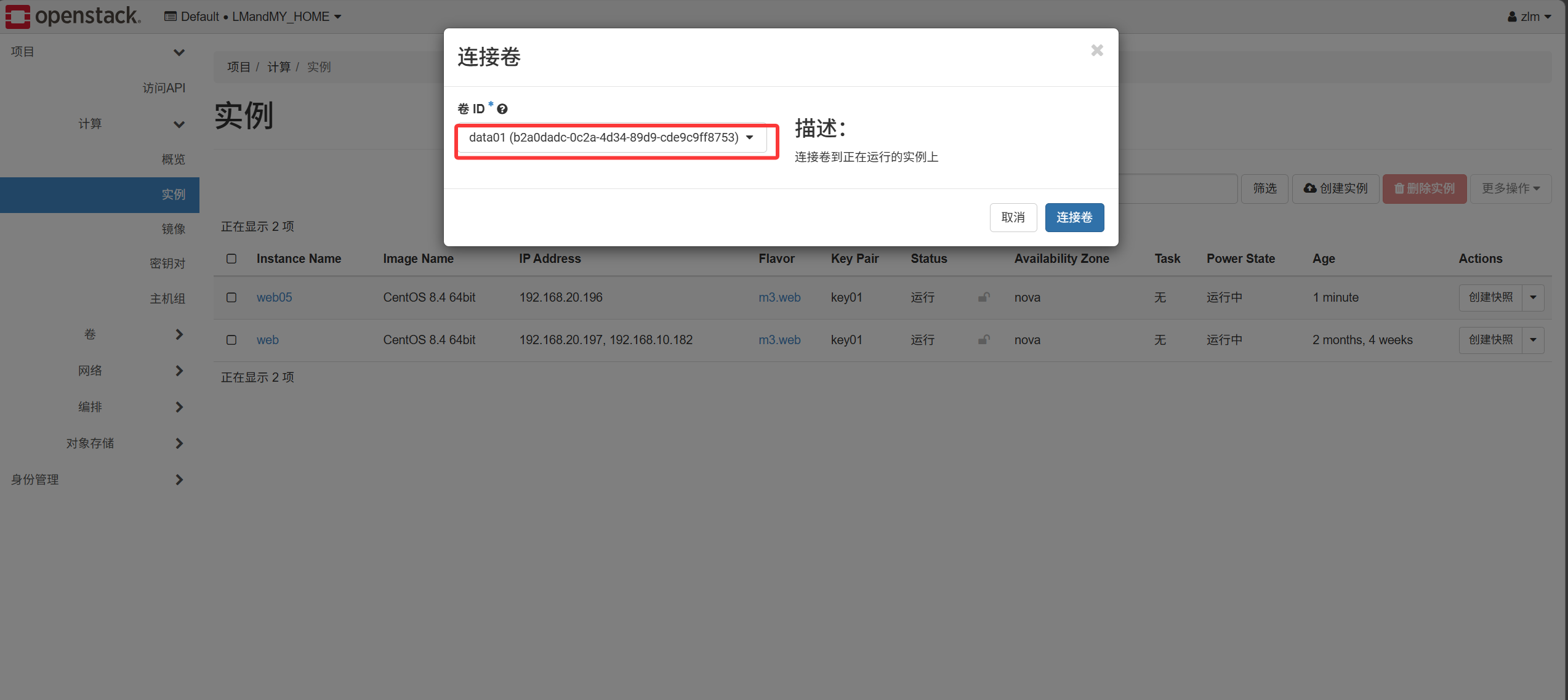
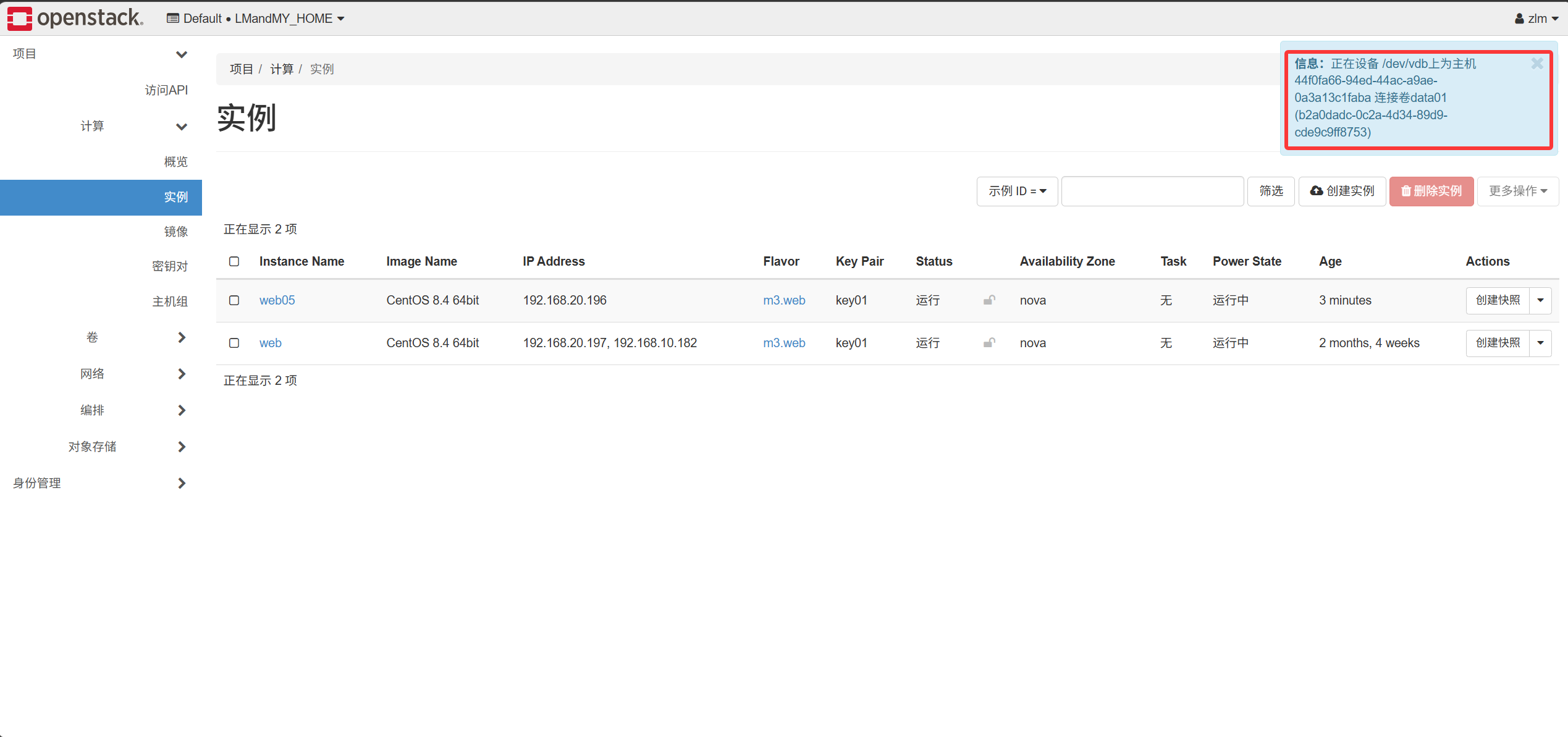
-
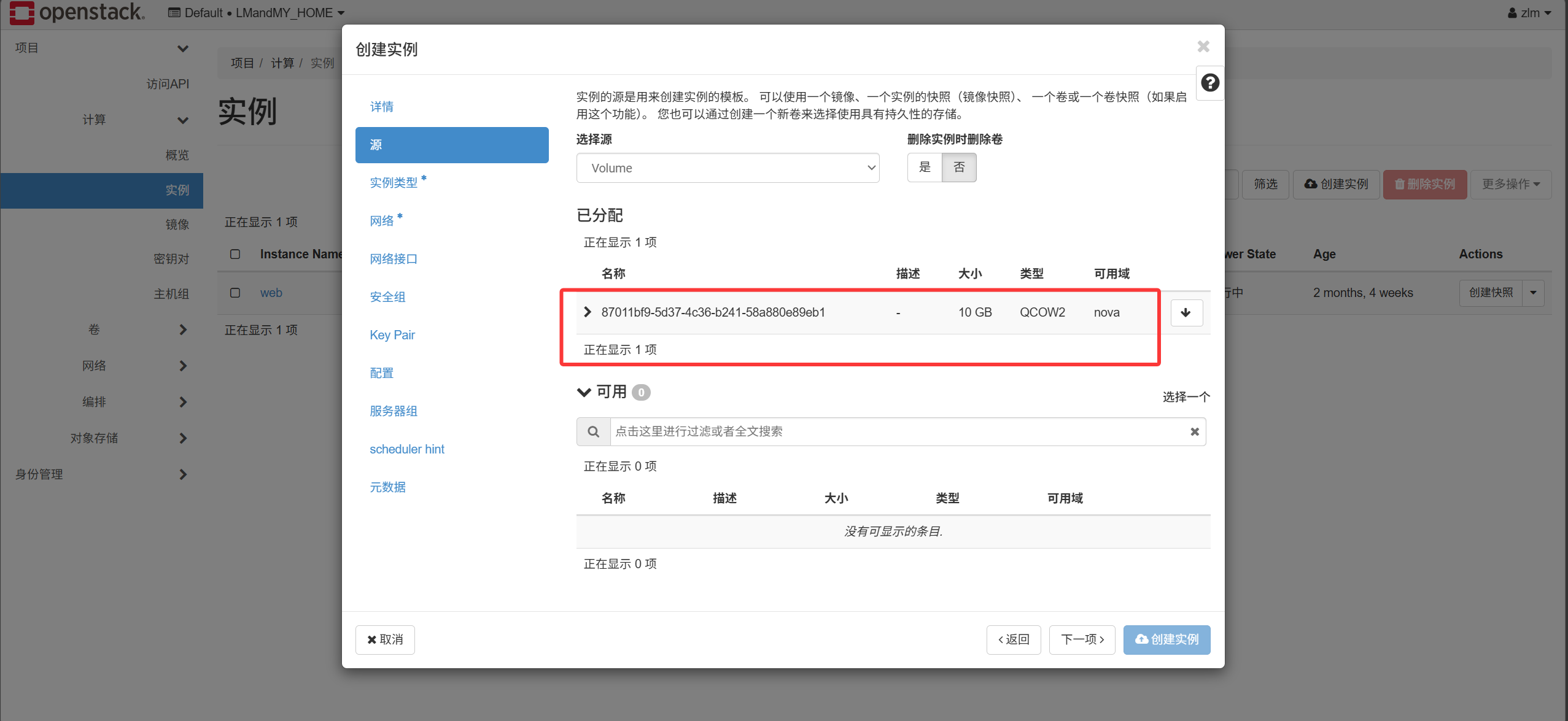
In the OpenStack web UI, create a volume, choose nfs, select an image as the source, and when creating the cloud server choose the newly created volume as the source
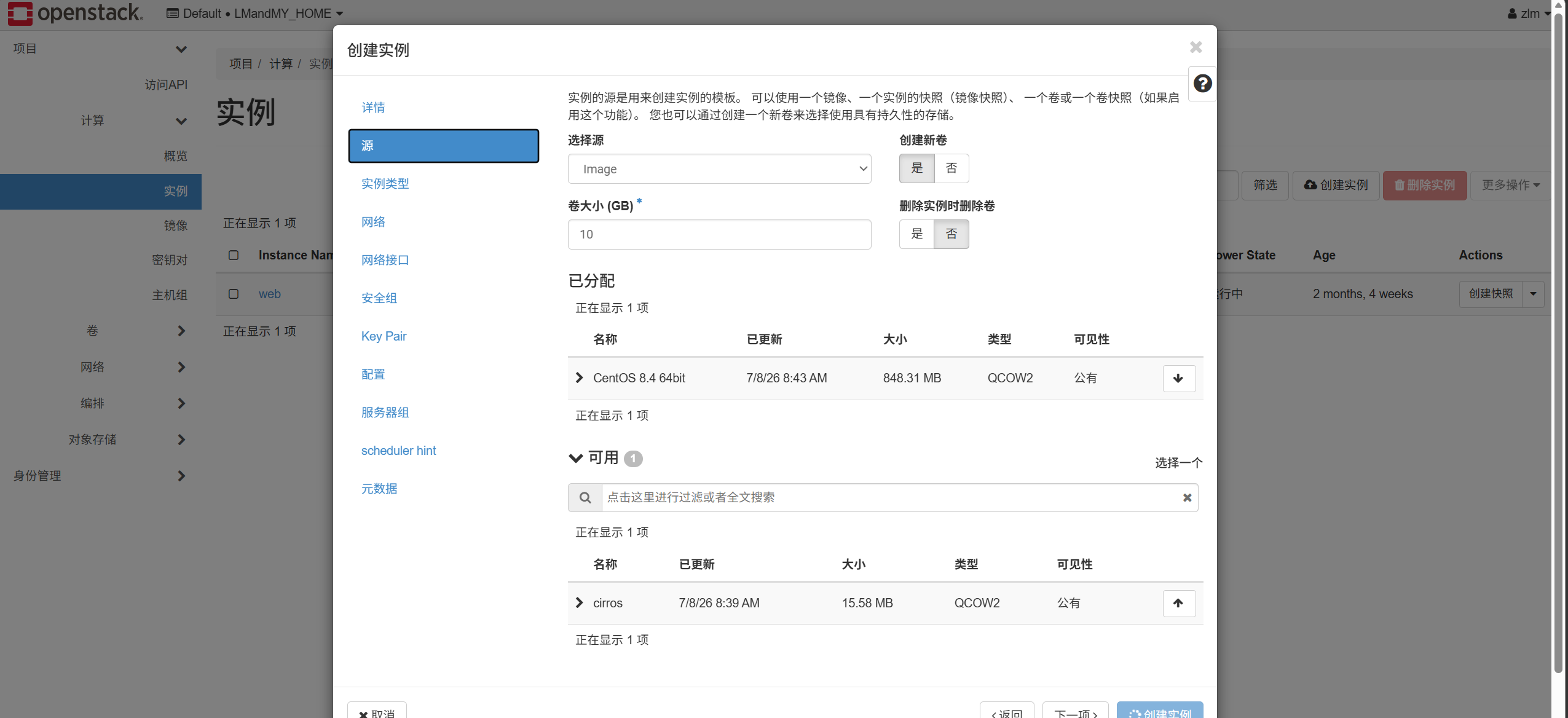
Once the cloud server is created, a volume is produced
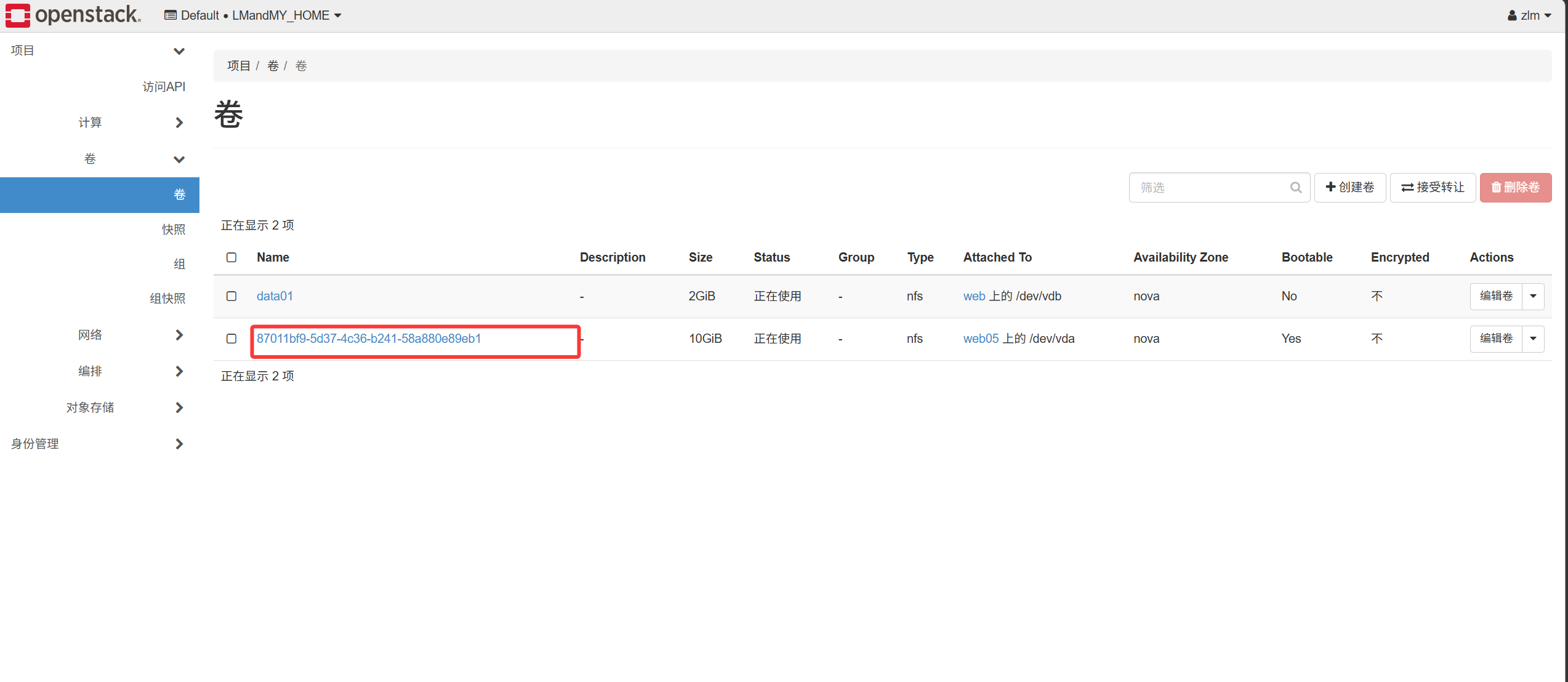
Delete the original cloud server, then create it again — this volume becomes usable