This article systematically introduces KVM virtualization technology, covering its development history, deployment methods, virtual machine management, network mode configuration, and automated VM installation via command line. All commands have been verified on CentOS/RHEL environments.
I. History of KVM
KVM (Kernel-based Virtual Machine) is the dominant virtualization technology in today’s cloud computing landscape. Understanding its development history helps explain why the industry ultimately chose KVM.
Virtualization technologies can be broadly divided into two categories: proprietary virtualization (e.g., VMware, Microsoft Hyper-V) and open-source virtualization (e.g., Xen, KVM).
The early representative of open-source virtualization was Xen. AWS and Alibaba Cloud both adopted Xen in their early days; Citrix’s XenServer and the desktop cloud product FusionAccess (corresponding to Citrix XenDesktop) were also based on Xen. Huawei’s FusionCompute used Xen prior to version 6.3.
Key milestones are as follows:
- 2008: Red Hat acquired KVM and officially released it in RHEL 5.4 (RHEL 5.0 shipped with Xen).
- 2010: The OpenStack project was born. Red Hat, together with IBM, Dell, VMware, Cisco, HP, and other vendors, embraced the KVM open-source community and built the ecosystem under the OpenStack Foundation. During the same period, Citrix promoted the CloudStack community.
- 2014: RHEL 5.11 was released (the end of life for the RHEL 5.x series, which provided 7 years of technical support and free upgrades to KVM).
- Around 2017: AWS launched KVM-based Nitro platform instances. Alibaba Cloud and numerous global vendors fully embraced KVM.
Today, the underlying virtualization technology of major cloud providers is essentially KVM. Huawei’s FusionCompute 6.3 also switched from Xen to KVM. In 2019, IBM acquired Red Hat for approximately $34 billion, bringing projects such as Ansible, GlusterFS, and Ceph under its umbrella, further validating the value of this technology path.
II. What is KVM
KVM stands for Kernel-based Virtual Machine. Its core characteristics are:
- No kernel upgrade required: It directly reuses the system’s own kernel, with each virtual machine running as a process.
- Lightweight virtualization platform: More compact and efficient compared to traditional solutions.
- Unified management: Both Xen and KVM virtualization platforms provide unified management platforms and command-line tools.
III. Deploying KVM
1. Install Required KVM Packages
Prerequisite: Enable virtualization support (VT-x) in the physical machine’s BIOS (enabled by default on most computers). If installing KVM nested inside VMware, you also need to enable VT-x support in VMware settings.
Recommended resource allocation: 4 CPU cores, 4 GB RAM.
|
|
2. Graphical VM Installation
This lab uses the graphical tool virt-manager to create and install virtual machines.
Note: The graphical wizard steps are not shown in screenshots in this article. The focus is on command-line operations; the graphical interface can be completed by following the prompts. Additionally, “host machine” refers to the machine running KVM virtual machines. This lab performs nested virtualization in VMware, so the host machine here is a VMware virtual machine, not a physical machine.
First, prepare the system installation image: create an /isos directory and copy the CentOS 8.4 ISO file into it.
|
|
Then launch the graphical management interface:
|
|
In the interface, click to create a new virtual machine, select the ISO placed in /isos as the installation source, and follow the wizard to configure CPU, memory, and disk to complete the installation. The disk file of the installed virtual machine is saved by default in the /var/lib/libvirt/images/ directory, named like server1.qcow2:
|
|
3. Creating a Disk
During the graphical installation in the previous step, virt-manager automatically creates the disk. Here we introduce the manual method, which will be used later for creating cloud images and adding disks to virtual machines. Use qemu-img to create a qcow2 format disk:
|
|
Tip: If you want to create a cloud image this way, a smaller capacity means faster creation. You can research how to make the image as small as possible. Typically, the system disk does not require high performance; the real performance bottleneck is on the data disk.
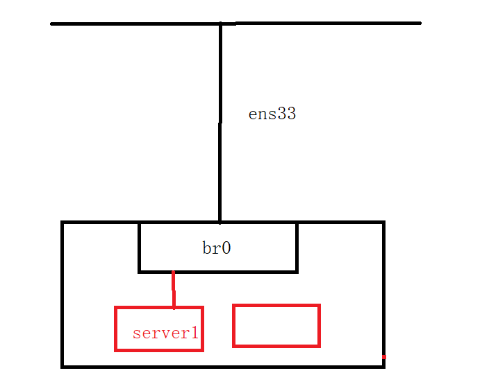
4. Creating Bridge Mode (Virtual Switch with Uplink)
Enter the network configuration directory and copy a bridge configuration based on the existing network interface:
|
|
Edit the bridge interface ifcfg-br0:
|
|
|
|
Edit the physical interface ifcfg-ens33 to bridge it to br0:
|
|
|
|
Reload the network configuration and restart the connections:
|
|
5. Creating a Cloud Image
Requirement: Create a custom cloud machine image.
After deploying the KVM virtual machine, enter the VM and install some necessary software:
- Configure a local yum repository
- Install necessary packages:
|
|
- Edit the
/etc/cloud/cloud.cfgconfiguration file and adjust parameters as needed - Delete
/etc/ssh/ssh_host* - Run
init 0to shut down
Finally, compress the image:
|
|
IV. Managing KVM
Enter the virsh interactive interface:
|
|
Common virtual machine management commands are as follows.
List all virtual machines:
|
|
Start / Shut down / Force off / Reboot a virtual machine:
|
|
6. Accessing the VM Console Interface
To enter a KVM virtual machine, add a virtual console to the VM, enabling console access from the host machine.
Edit the grub configuration inside the virtual machine:
|
|
Append console=ttyS0 to the end of GRUB_CMDLINE_LINUX:
|
|
Regenerate the grub configuration and reboot:
|
|
Connect to the console from the host machine:
|
|
The shortcut to exit the console is Ctrl + ].
7. Adding a Disk to a VM via Configuration
(1) Create a disk file:
|
|
(2) Add the disk via the configuration file:
|
|
Add the following disk section to the configuration:
|
|
Restart the service and start the virtual machine:
|
|
Verify the disk inside the KVM virtual machine:
|
|
Comparison: Under Xen virtualization, disk device names are
/dev/xvda,/dev/xvdb.
8. Quickly Creating a KVM Virtual Machine
Quickly create a new VM by copying an existing VM’s XML configuration:
|
|
Modify key parameters such as name, uuid, disk path, and MAC address:
|
|
Restart the service and start the new virtual machine:
|
|
V. KVM Network Configuration
KVM commonly supports three network modes: NAT mode, Host-Only mode, and Bridge mode.
1. NAT Mode
NAT is implemented through iptables address masquerading:
|
|
Or use SNAT to specify the source address:
|
|
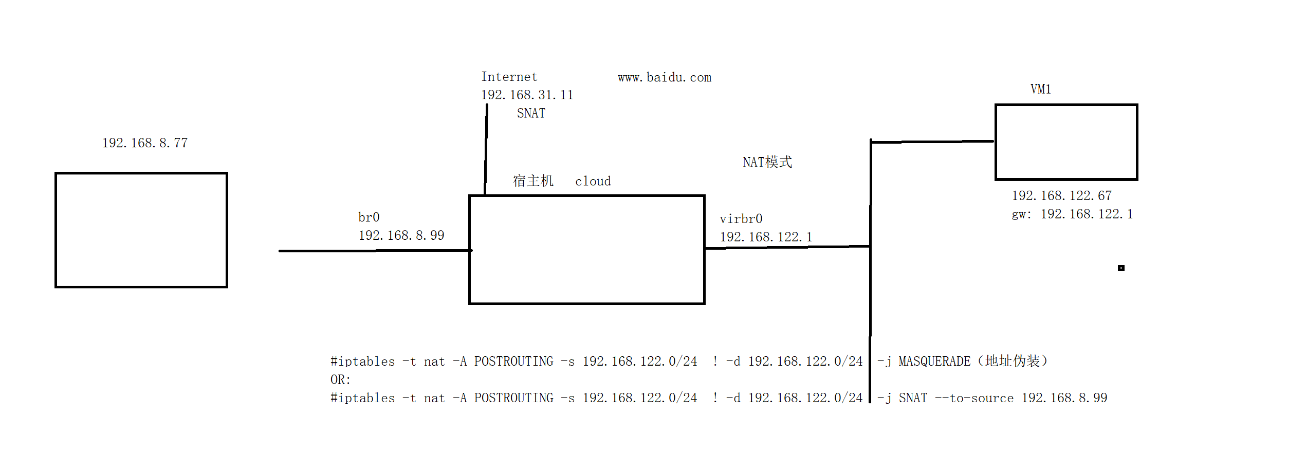
View NAT rules:
|
|
The default network configuration file is located at /etc/libvirt/qemu/networks:
|
|
2. Host-Only Mode
In Host-Only mode, virtual machines can only communicate with the host machine and cannot access external networks.
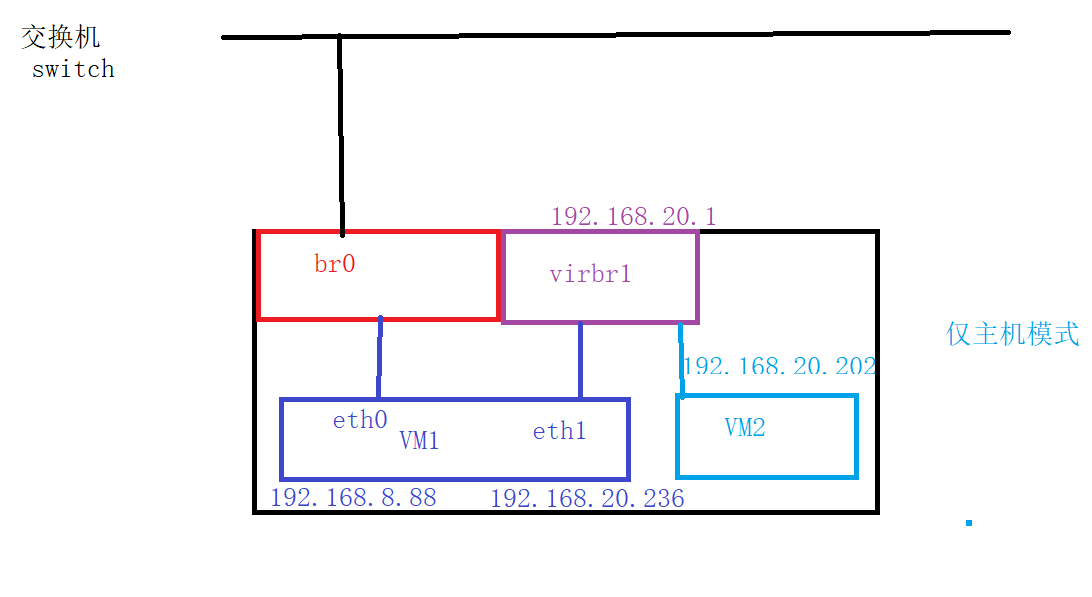
3. Enabling KVM Virtual Machines to Access the Internet
(1) Add a network interface to the VMware host that can access the Internet.
(2) Enter the host operating system and configure dual bridges.
ifcfg-br0 (internal network bridge):
|
|
ifcfg-br1 (external network bridge, DHCP):
|
|
ifcfg-ens33 bridged to br0:
|
|
ifcfg-ens37 bridged to br1:
|
|
Restart the service and shut down the virtual machines:
|
|
Modify the network interface of server1 in KVM to bridge to br1, and change the IP acquisition method to DHCP inside VM1:
|
|
Test external network connectivity:
|
|
VI. Installing KVM Virtual Machines via Command Line
With kickstart automated installation scripts, you can perform unattended batch installation of virtual machines.
1. Create a Disk
|
|
2. Automated Installation
Use virt-install to specify the installation source and kickstart file:
|
|
Example kickstart configuration file ks01.cfg:
|
|
|
|
Note: The installation source addresses (
192.168.0.107), hostname (server3), and the password hashes afterrootpwanduserin the above example are for illustration only. Please replace them with your own environment’s addresses and generated password ciphertexts in actual use.