01. Jenkins Introduction#
-
Official site: jenkins.io
-
Jenkins is an open-source project — a Java-based continuous integration tool that monitors repetitive tasks and provides an open, easy-to-use platform to make software CI possible.
02. Jenkins Deployment#
 1
 2
 3
 4
 5
 6
 7
 8
 9
10
11
12
13
14
15
16
17
18
19
20
21
22
23
24
25
26
27
28
29
30
31
32
33
34
35
36
37
38
39
40
41
42
43
44
45
46
47
48
49
50
51
52
53
54
|
I. Environment preparation
1. OS: CentOS 7.9
2. Memory: 2G for lab, at least 6G for production
3. Disable the firewall and turn off SELinux
4、JDK17

II. Install the JDK
Upload the RPM package
[root@jenkins ~]#ll
total 178212
-rw-r--r-- 1 root root 182486159 Oct  1 19:04 jdk-17_linux-x64_bin.rpm

[root@jenkins ~]#rpm -ivh jdk-17_linux-x64_bin.rpm
warning: jdk-17_linux-x64_bin.rpm: Header V3 RSA/SHA256 Signature, key ID ad986da3: NOKEY
Preparing...                          ################################# [100%]
Updating / installing...
   1:jdk-17-2000:17.0.11-7            ################################# [100%]

Check whether the installation succeeded:
[root@jenkins ~]# rpm -qa|grep jdk
jdk-17-17.0.11-7.x86_64

II. Install Jenkins
Upload the Jenkins package
[root@jenkins ~]#ll
total 269432
-rw-r--r-- 1 root root 182486159 Oct  1 19:04 jdk-17_linux-x64_bin.rpm
-rw-r--r-- 1 root root  93405530 Oct  1 19:06 jenkins-2.405-1.1.noarch.rpm
[root@jenkins ~]#rpm -ivh jenkins-2.405-1.1.noarch.rpm
warning: jenkins-2.405-1.1.noarch.rpm: Header V4 RSA/SHA512 Signature, key ID ef5975ca: NOKEY
Preparing...                          ################################# [100%]
Updating / installing...
   1:jenkins-2.405-1.1                ################################# [100%]

III. Change the Jenkins run user to root
1) Change the run user in the config file
[root@jenkins ~]# vim /etc/sysconfig/jenkins
...
JENKINS_USER="root"
...
2) Change the run user in the service config
[root@jenkins ~]# vim /usr/lib/systemd/system/jenkins.service
...
User=root
Group=root
...
[root@jenkins ~]# systemctl daemon-reload

3) Install font configuration
[root@jenkins ~]# yum -y install fontconfig

IV. Start Jenkins and enable it on boot
[root@jenkins ~]# systemctl start jenkins
[root@jenkins ~]# systemctl enable jenkins
|
03. Log in to Jenkins#
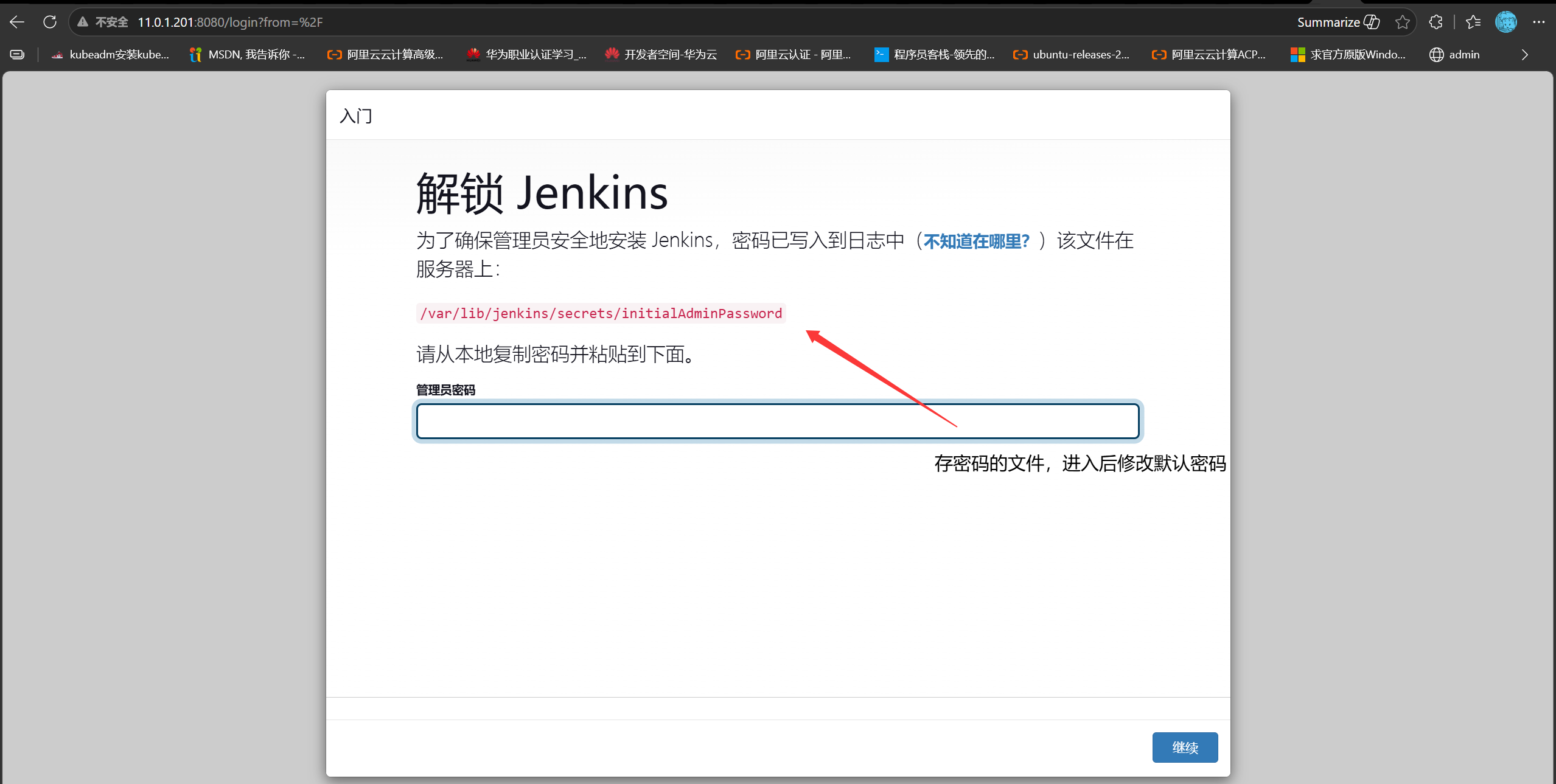
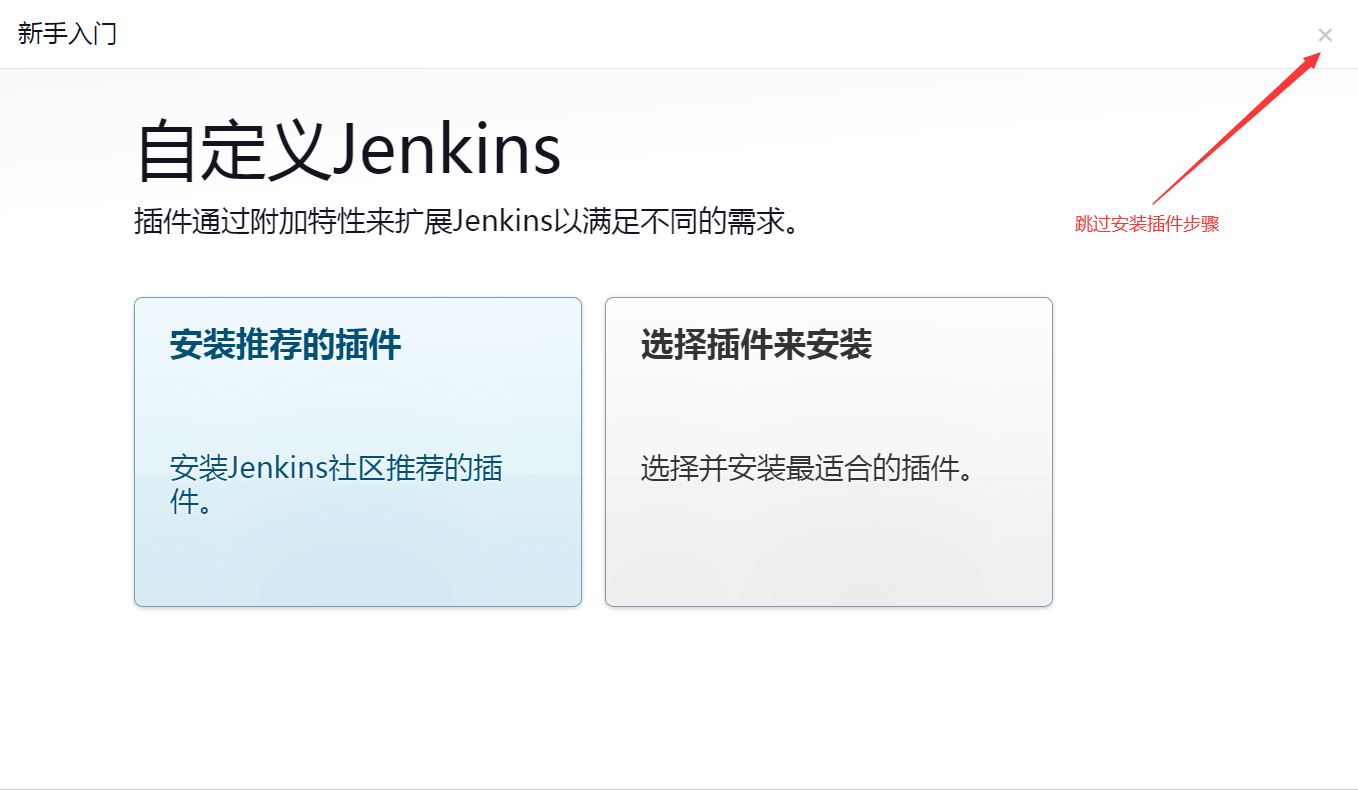
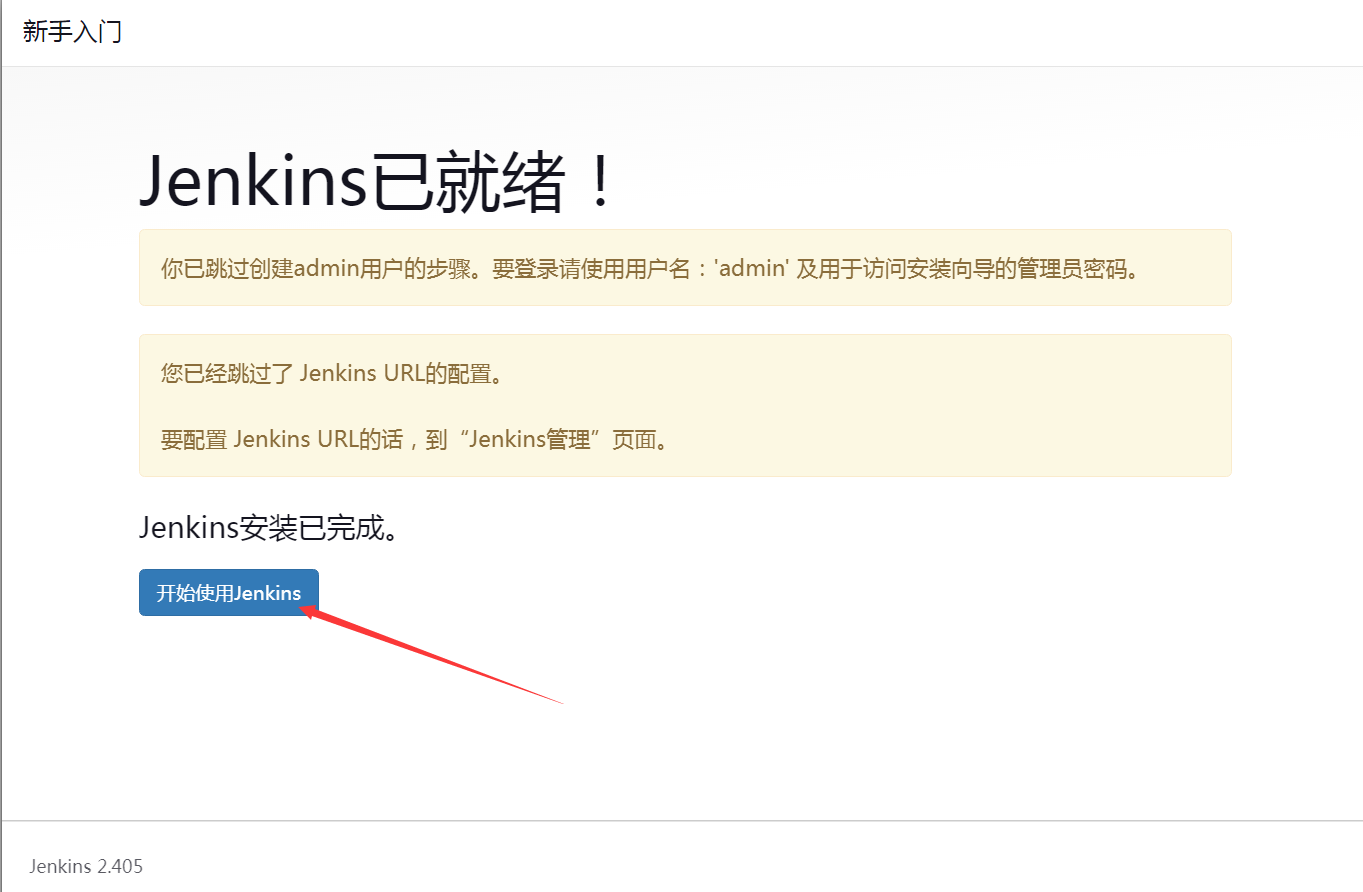
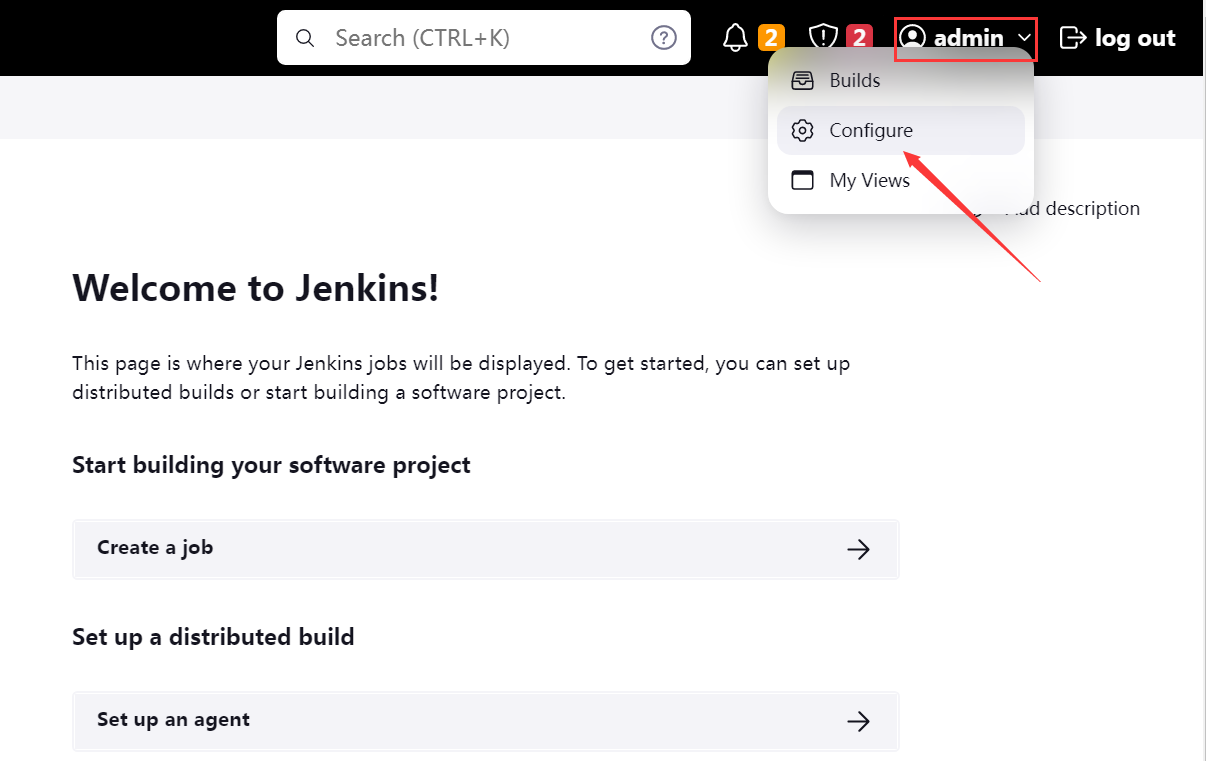
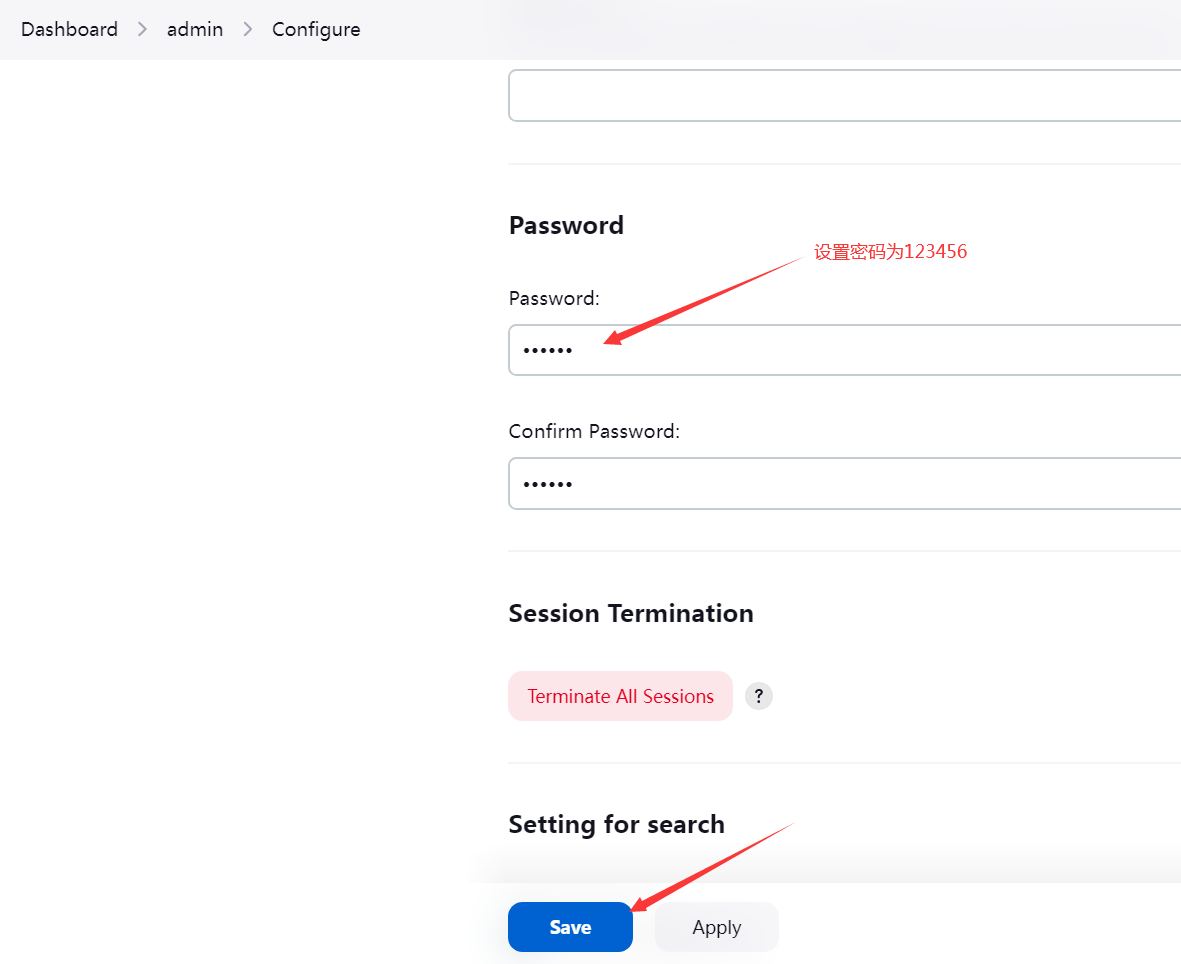
04. Change the password#
After changing the password you are logged out; log back in as admin
05. Plugin installation#
 1
 2
 3
 4
 5
 6
 7
 8
 9
10
11
12
13
14
|
1. Upload plugins to the Jenkins home directory
[root@jenkins ~]# cd /var/lib/jenkins/

[root@jenkins ~]#ll
total 576228
-rw-r--r-- 1 root root 182486159 Oct  1 19:04 jdk-17_linux-x64_bin.rpm
-rw-r--r-- 1 root root  93405530 Oct  1 19:06 jenkins-2.405-1.1.noarch.rpm
-rw-r--r-- 1 root root 314156543 Oct  1 19:30 jenkins_plu.tar.gz

2. Extract the plugins into the plugins directory
[root@jenkins jenkins]#tar xf /root/jenkins_plu.tar.gz -C plugins/

3. Restart Jenkins to apply
[root@jenkins ~]# systemctl restart jenkins
|
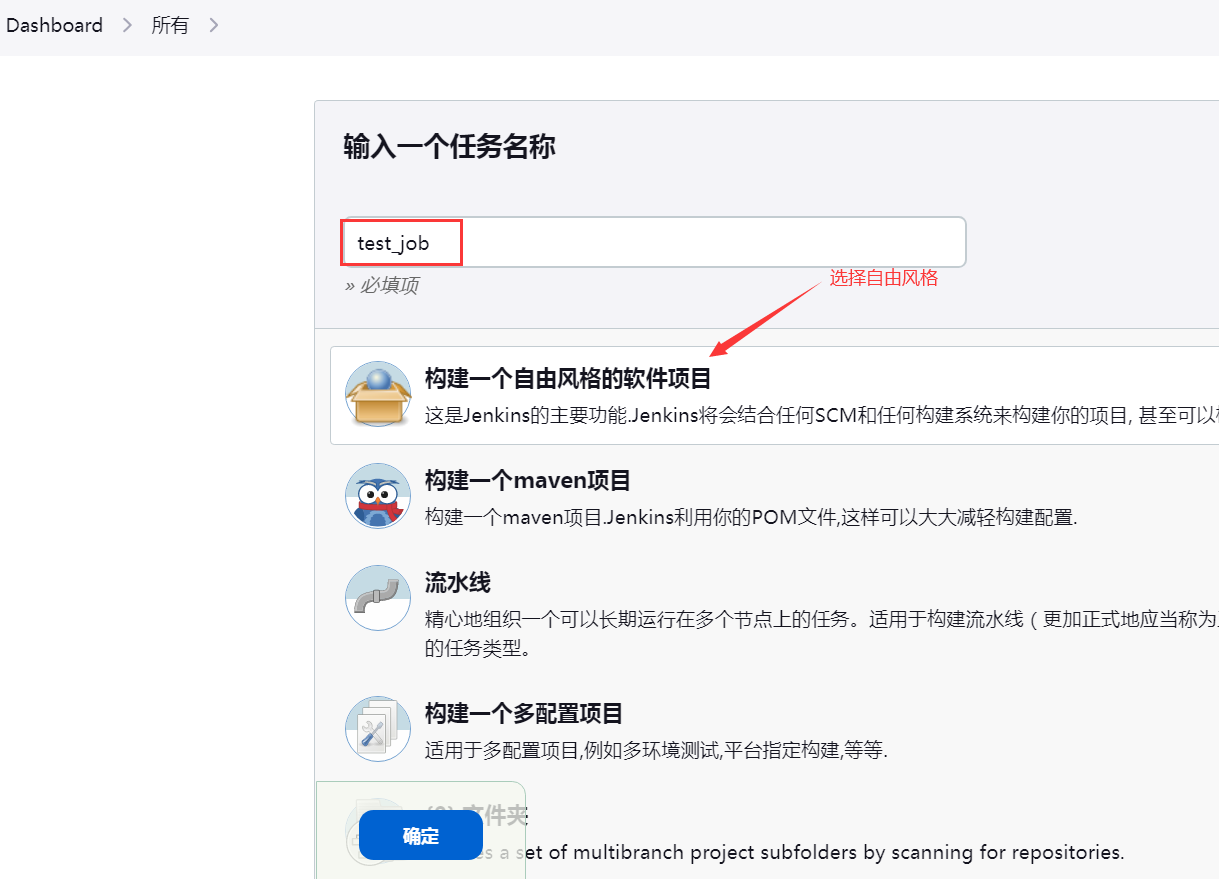
06. Create a project#
Create a freestyle project and run pwd to see the default working directory Jenkins uses
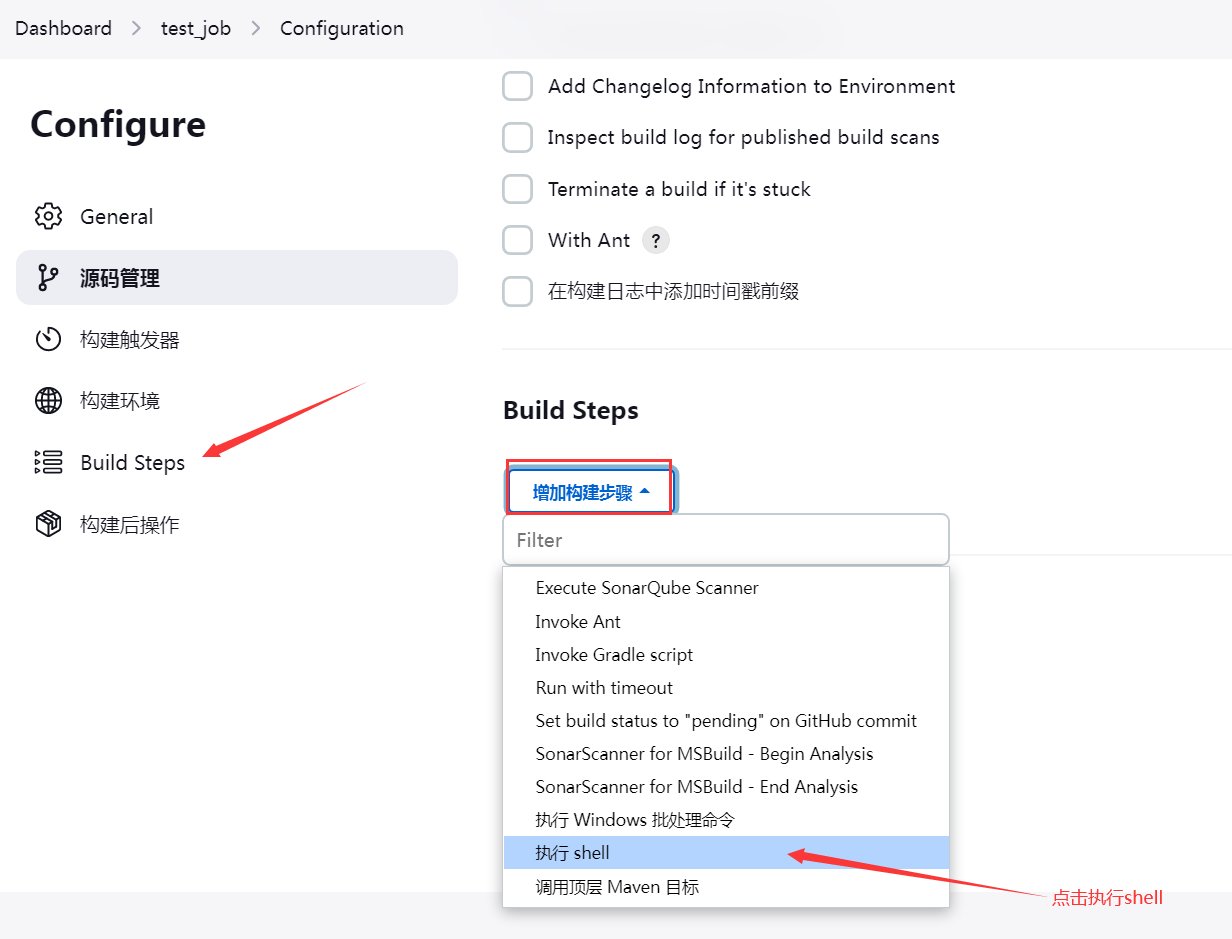
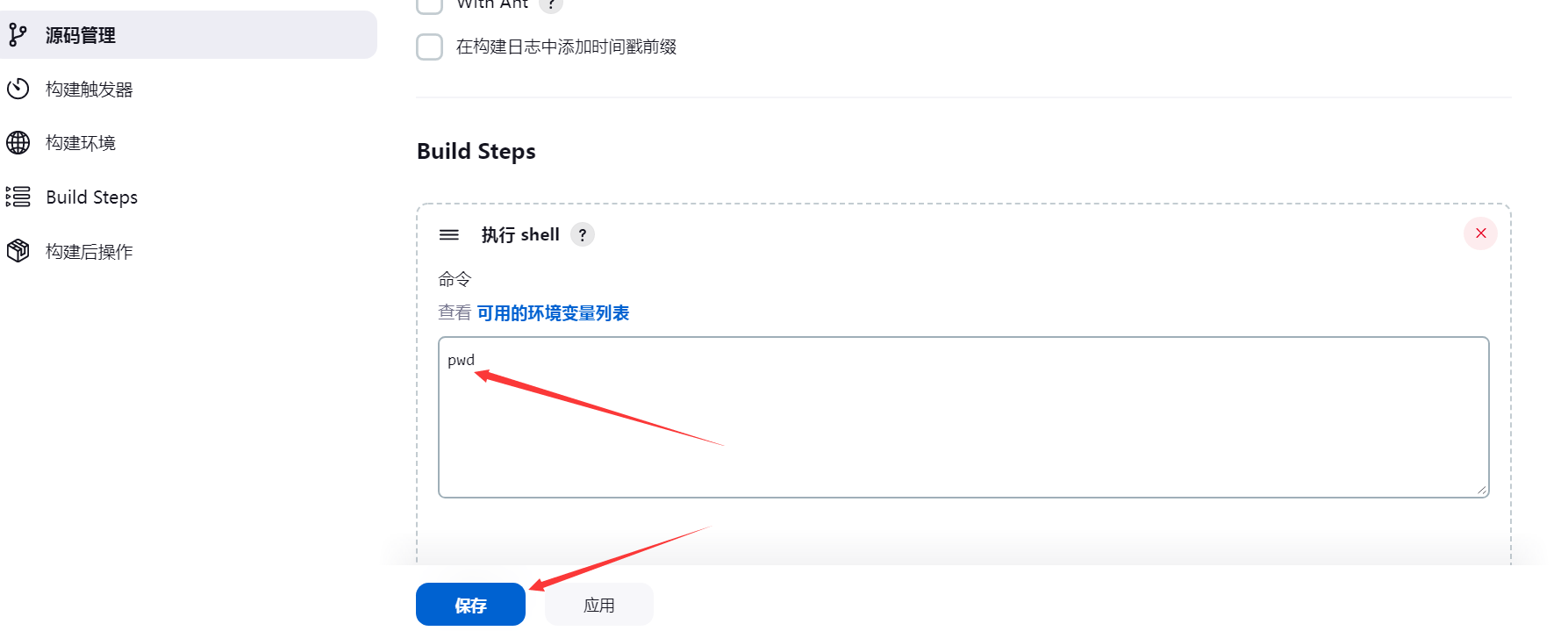
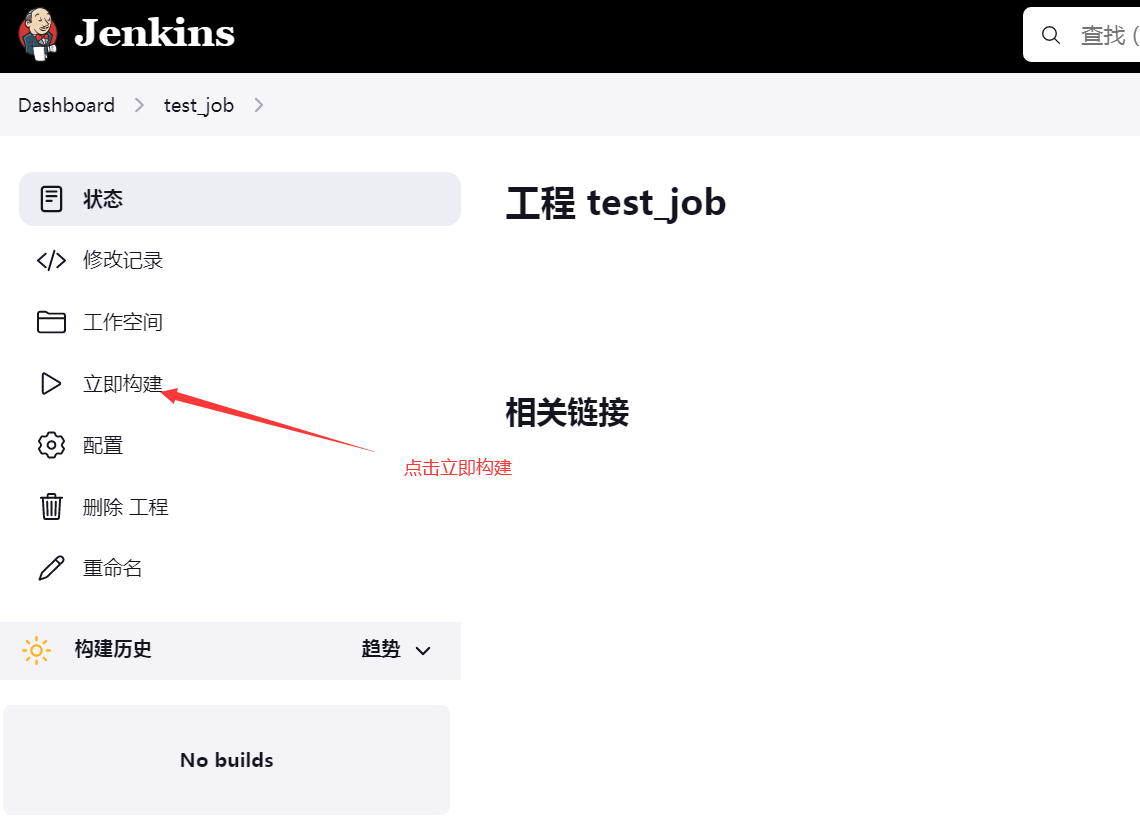
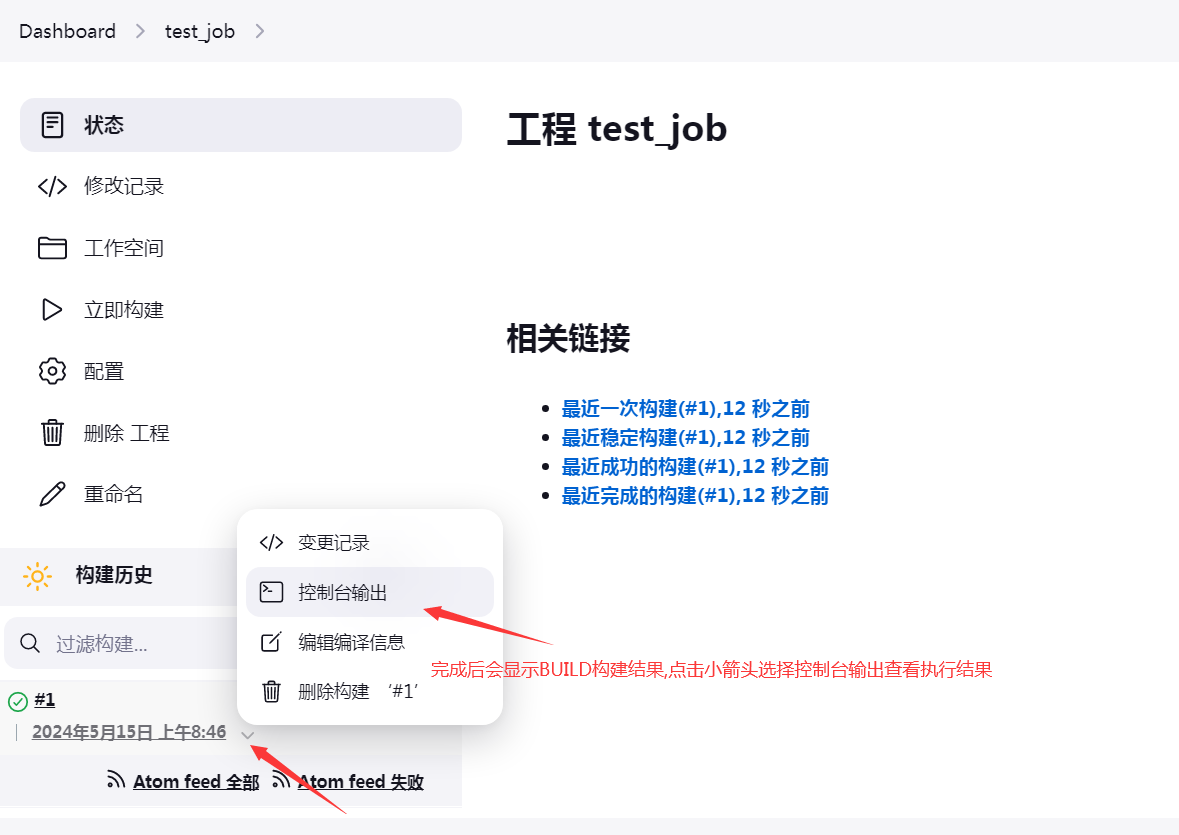
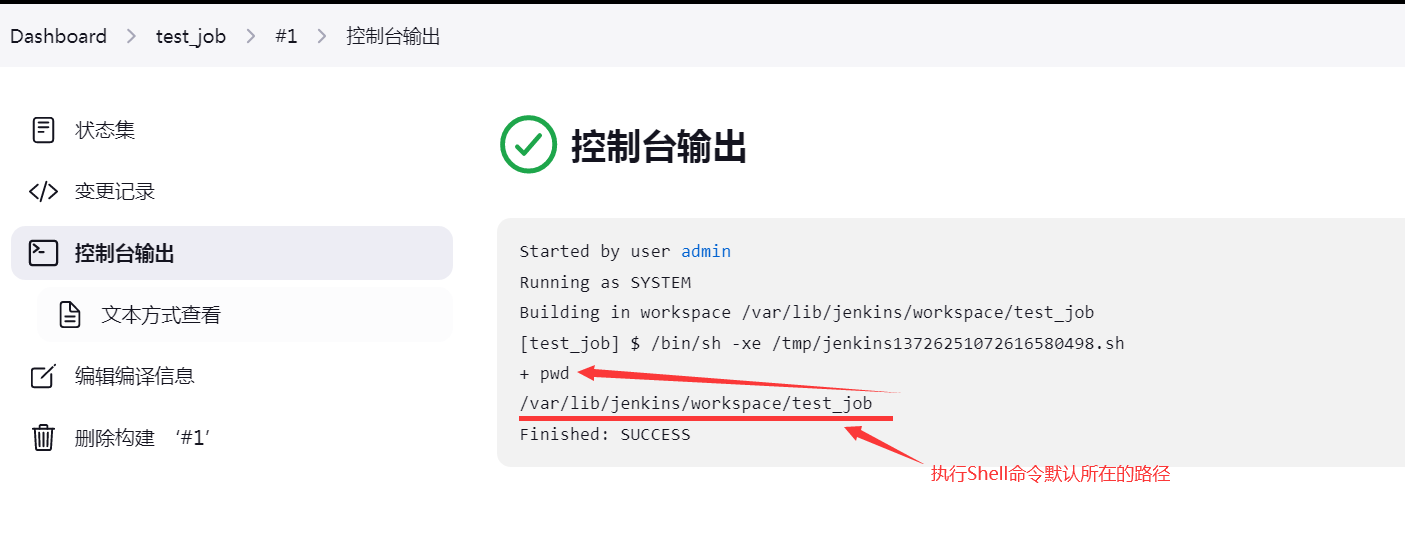
Note: after Jenkins creates a project, it automatically creates a workspace directory under its home /var/lib/jenkins/, and inside it a directory named after the project.
Subsequently, the code Jenkins pulls from GitLab is stored under this project directory.
1
2
|
[root@jenkins ~]#ls /var/lib/jenkins/workspace/
test_job
|
Connect GitLab with Jenkins
Before it is connected, a “cannot connect” error is shown:
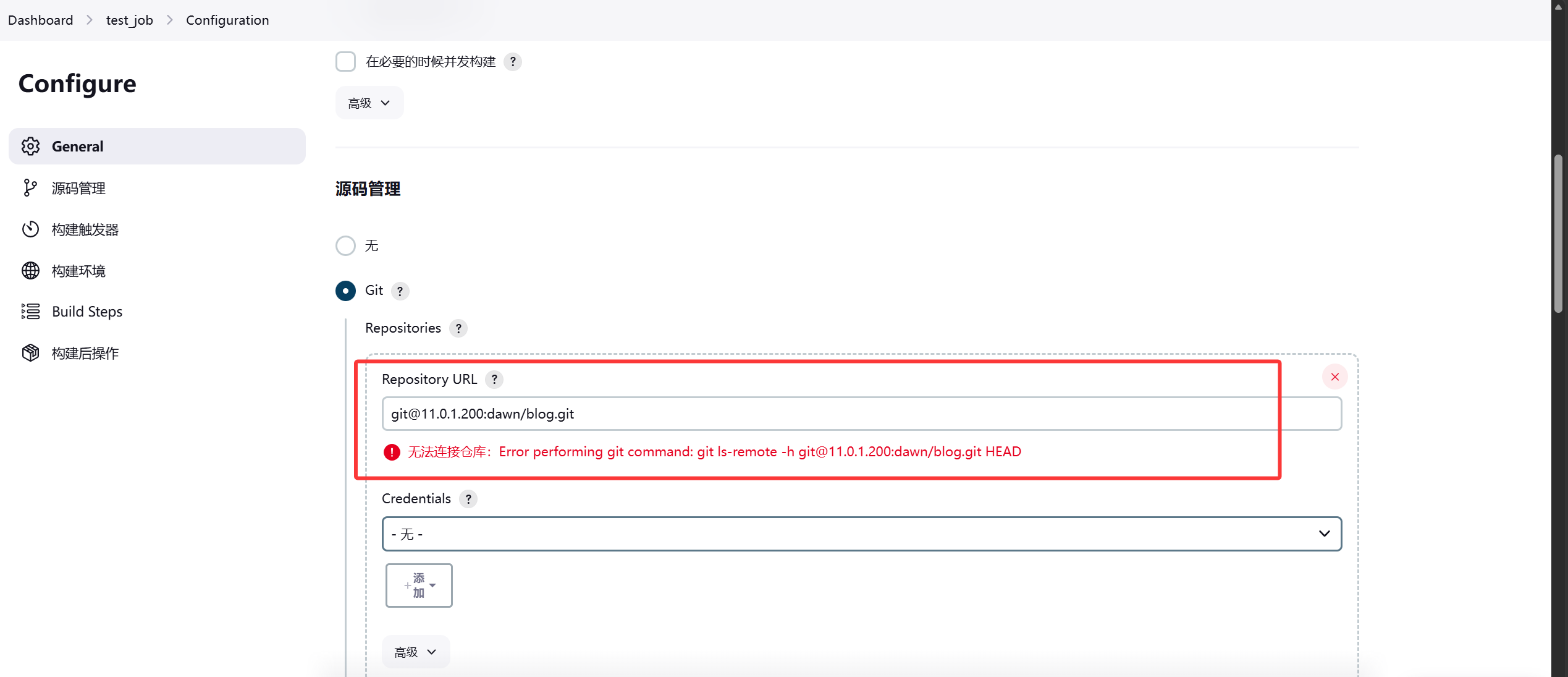
 1
 2
 3
 4
 5
 6
 7
 8
 9
10
11
12
13
14
15
16
17
18
19
20
21
22
23
24
25
26
27
28
|
# configure keyless (SSH) access
[root@jenkins ~]#ssh-keygen
Generating public/private rsa key pair.
Enter file in which to save the key (/root/.ssh/id_rsa): Created directory '/root/.ssh'.
Enter passphrase (empty for no passphrase):
Enter same passphrase again:
Your identification has been saved in /root/.ssh/id_rsa.
Your public key has been saved in /root/.ssh/id_rsa.pub.
The key fingerprint is:
SHA256:Rr4ouinx/cPqVxJsxju2Cjd1mhWmWSuKGOKG532uTvk root@jenkins
The key's randomart image is:
+---[RSA 2048]----+
|                 |
|                 |
|     o  =        |
|      *B o       |
|o    o=oS        |
|=o . +=O..       |
|o=+.Bo+=.        |
|oo.B.+*          |
| .=+BOE.         |
+----[SHA256]-----+

[root@jenkins ~]#cat .ssh/id_rsa.pub
ssh-rsa AAAAB3NzaC1yc2EAAAADAQABAAABAQC+kaj/NEwHKaIErMEClVYuG3JuWr9CD7XpuO5YZ6JftMmNdAPMrvS0mWqP4SDyT6/le0j1RGkA48GsirESfMqXKvzSSd5AuhIPmUADtGPNK6VSeiMKyoWgiNBFLn6RIOAcXI0MuZrYQMLJz+kOYr6kF9em/6MfFQrLkt9DzIlnR9b7CMLyDnPOZ8FG640DqqX0sZ8G+i2v41VX/c7RGIWAgEhJY+kiMS5cDxWlTf2k8hoZmh0VIa/G9AwnvbklyUiE4ACd9GtEJG5xXJzedn7q0/Ygfr26T29t+KST3SlyrXIaEbEC5WwIMymCEJDCPPCGzqLjsWa+4dbJhoEM1afV root@jenkins

# install git on Jenkins
[root@jenkins ~]#yum install -y git
|
Add the key generated by Jenkins into GitLab:
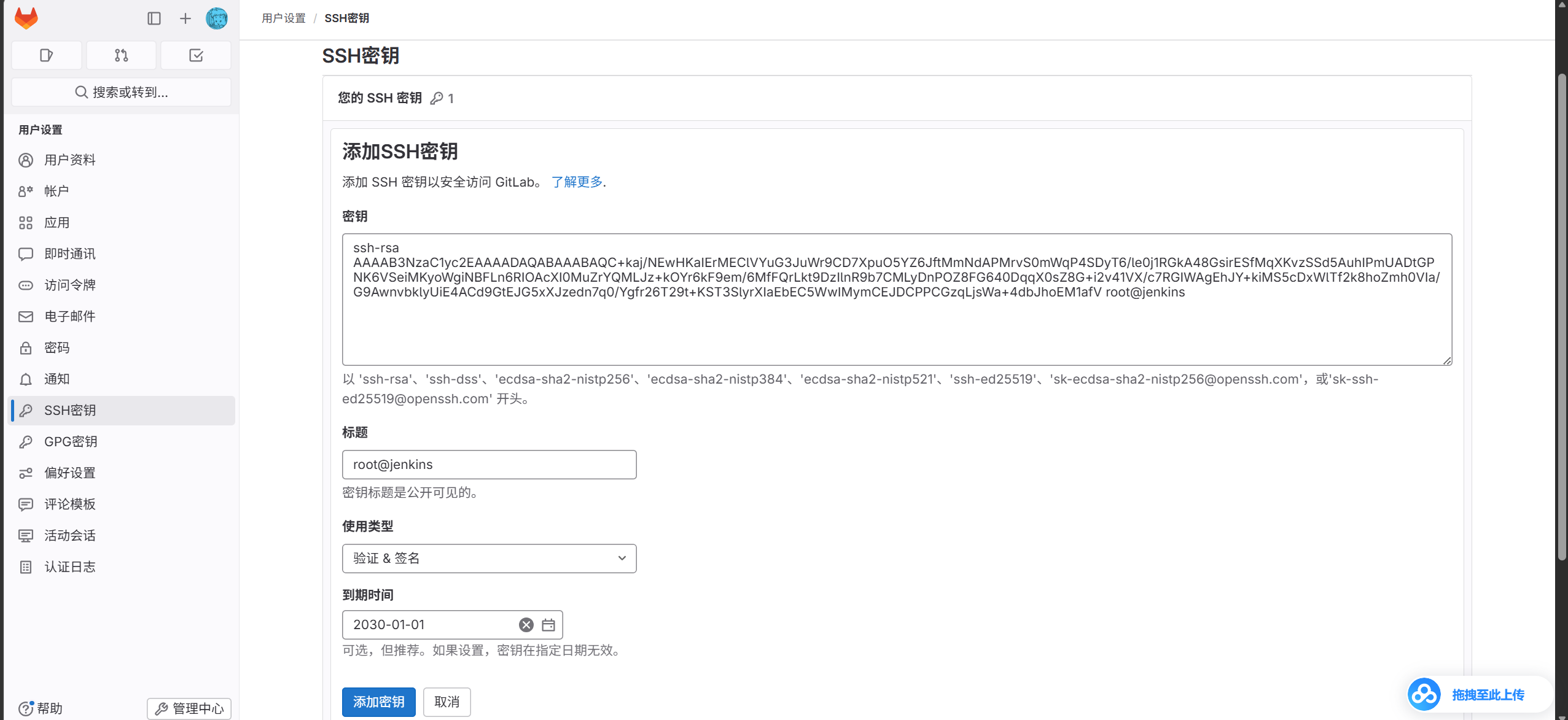
Run git clone once on Jenkins to complete the initial yes prompt
 1
 2
 3
 4
 5
 6
 7
 8
 9
10
11
12
13
|
[root@jenkins ~]#git clone git@11.0.1.200:dawn/blog.git
Cloning into 'blog'...
The authenticity of host '11.0.1.200 (11.0.1.200)' can't be established.
ECDSA key fingerprint is SHA256:Ldn1vBzBEFxynXs0qBNr0XzJ2lTx/0caMuK5yJtb+Zo.
ECDSA key fingerprint is MD5:3d:1d:28:3f:33:ec:ee:c1:69:83:af:14:a3:7f:79:ac.
Are you sure you want to continue connecting (yes/no)? yes
Warning: Permanently added '11.0.1.200' (ECDSA) to the list of known hosts.
remote: Enumerating objects: 20, done.
remote: Counting objects: 100% (9/9), done.
remote: Compressing objects: 100% (8/8), done.
remote: Total 20 (delta 0), reused 0 (delta 0), pack-reused 11
Receiving objects: 100% (20/20), done.
Resolving deltas: 100% (2/2), done.
|
Then the connection works
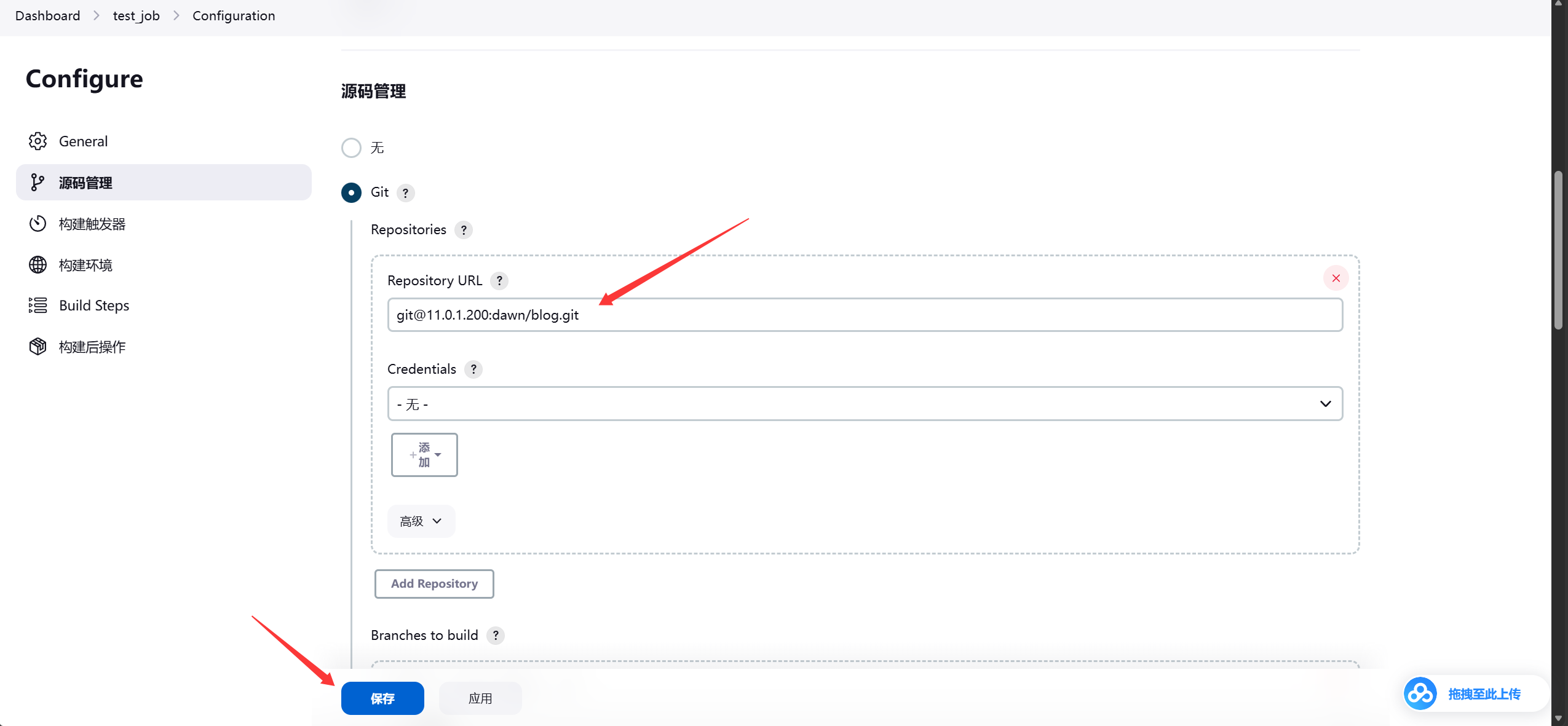
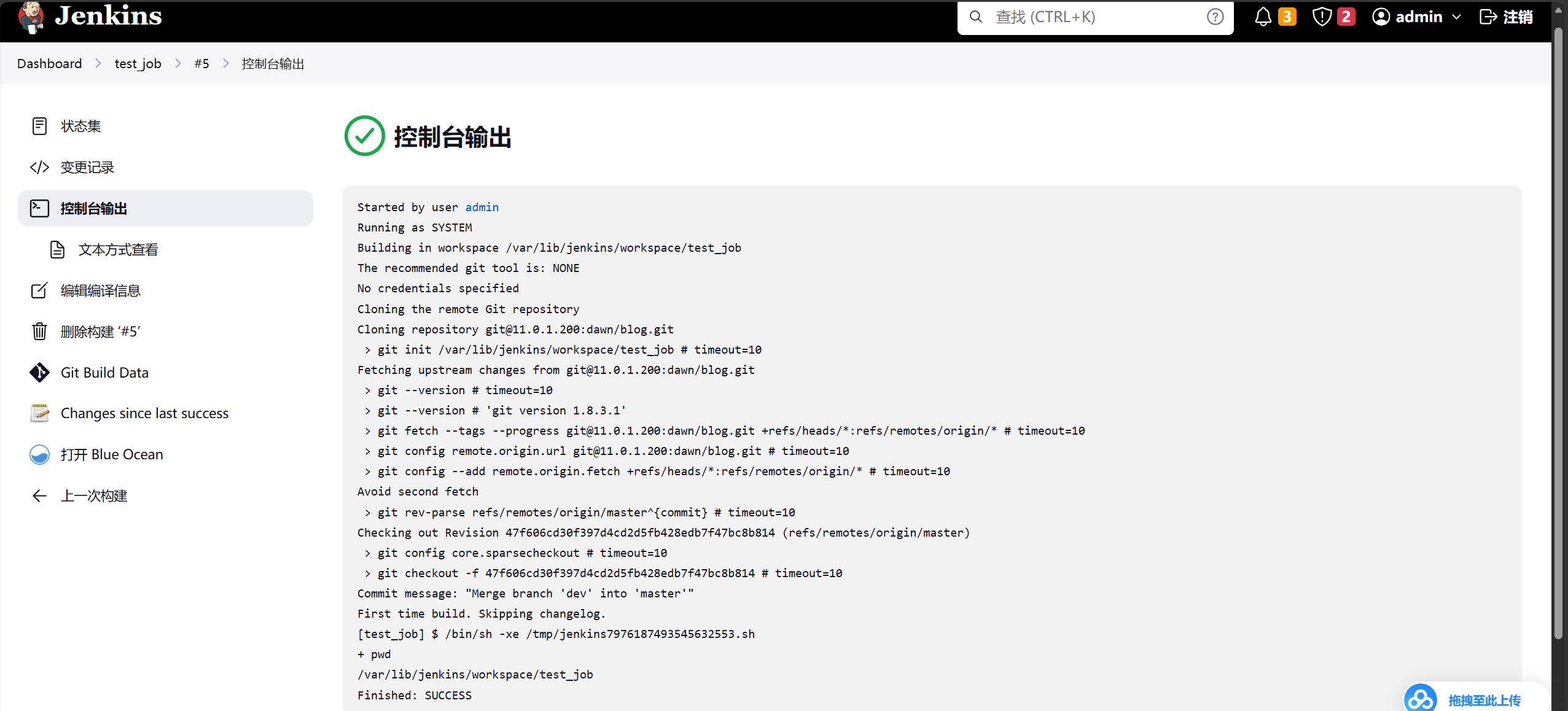
Trigger another build to test the pull
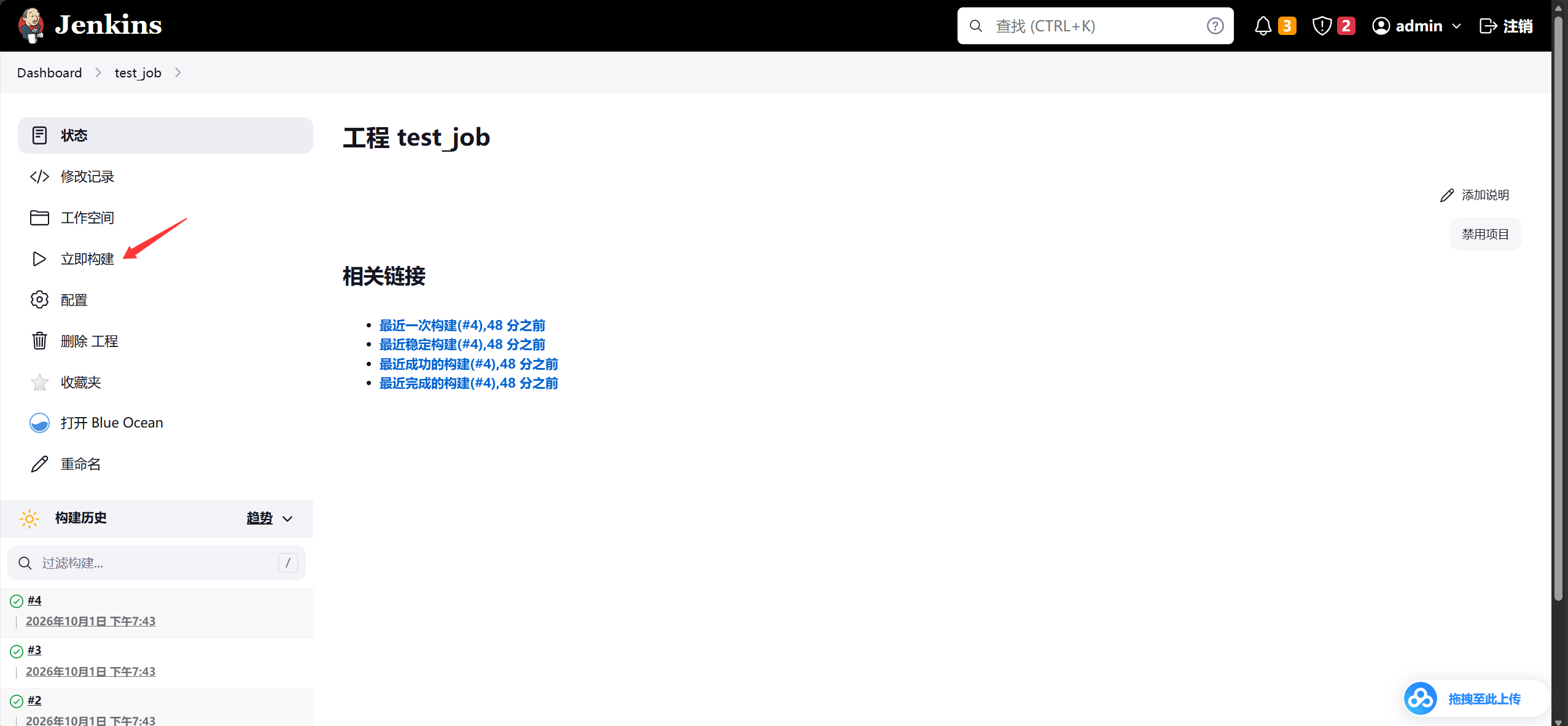
Pull succeeded

Configure the webhook
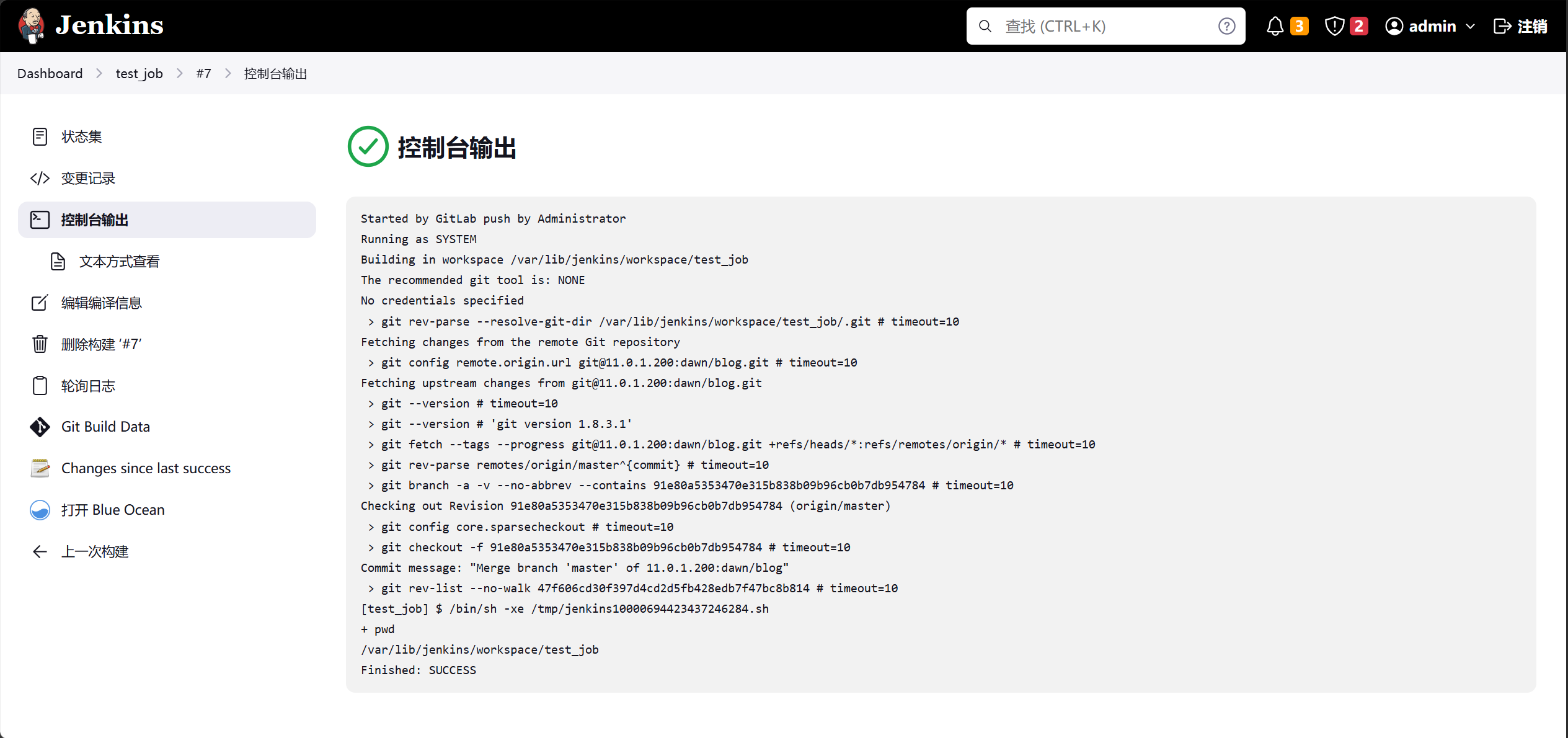
Configure a webhook so Jenkins automatically pulls GitLab code and builds on each push
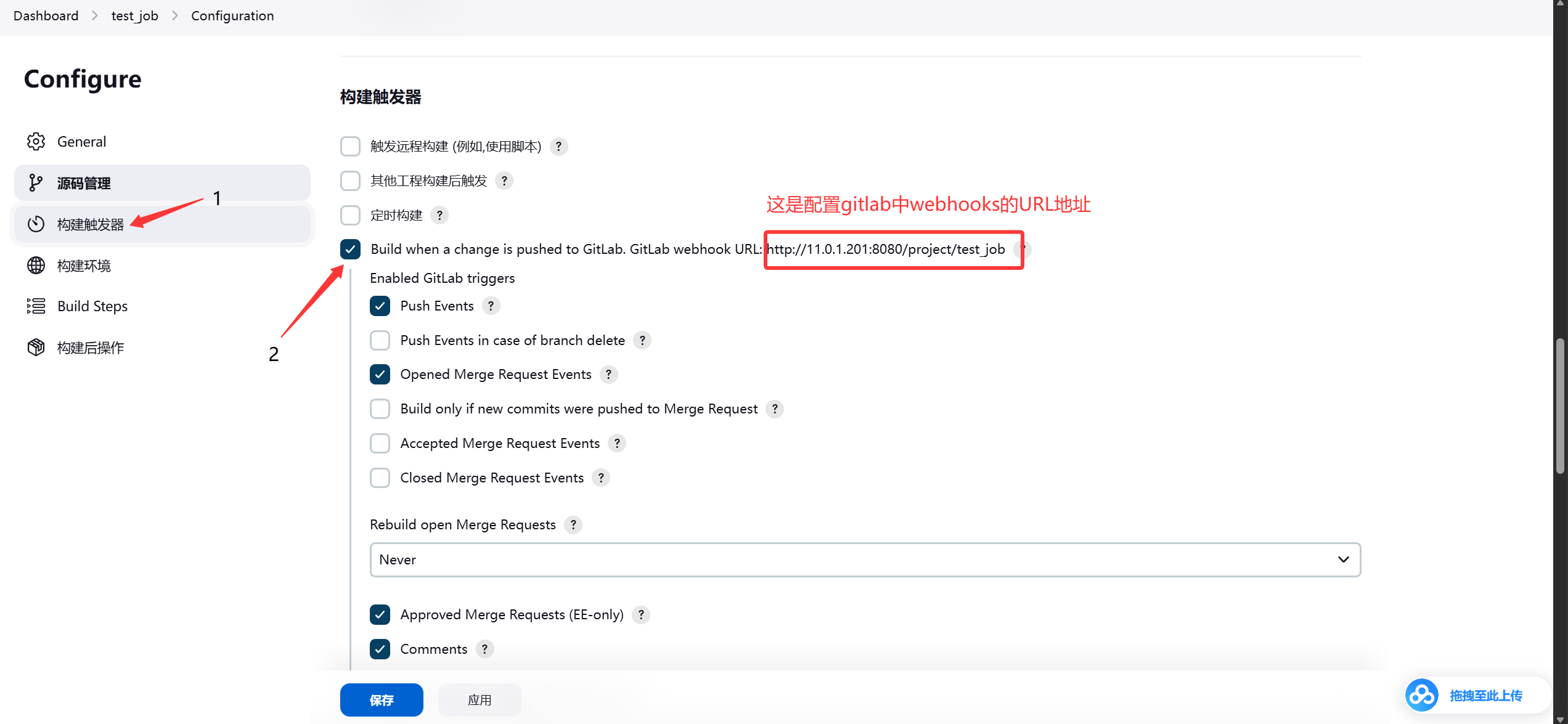
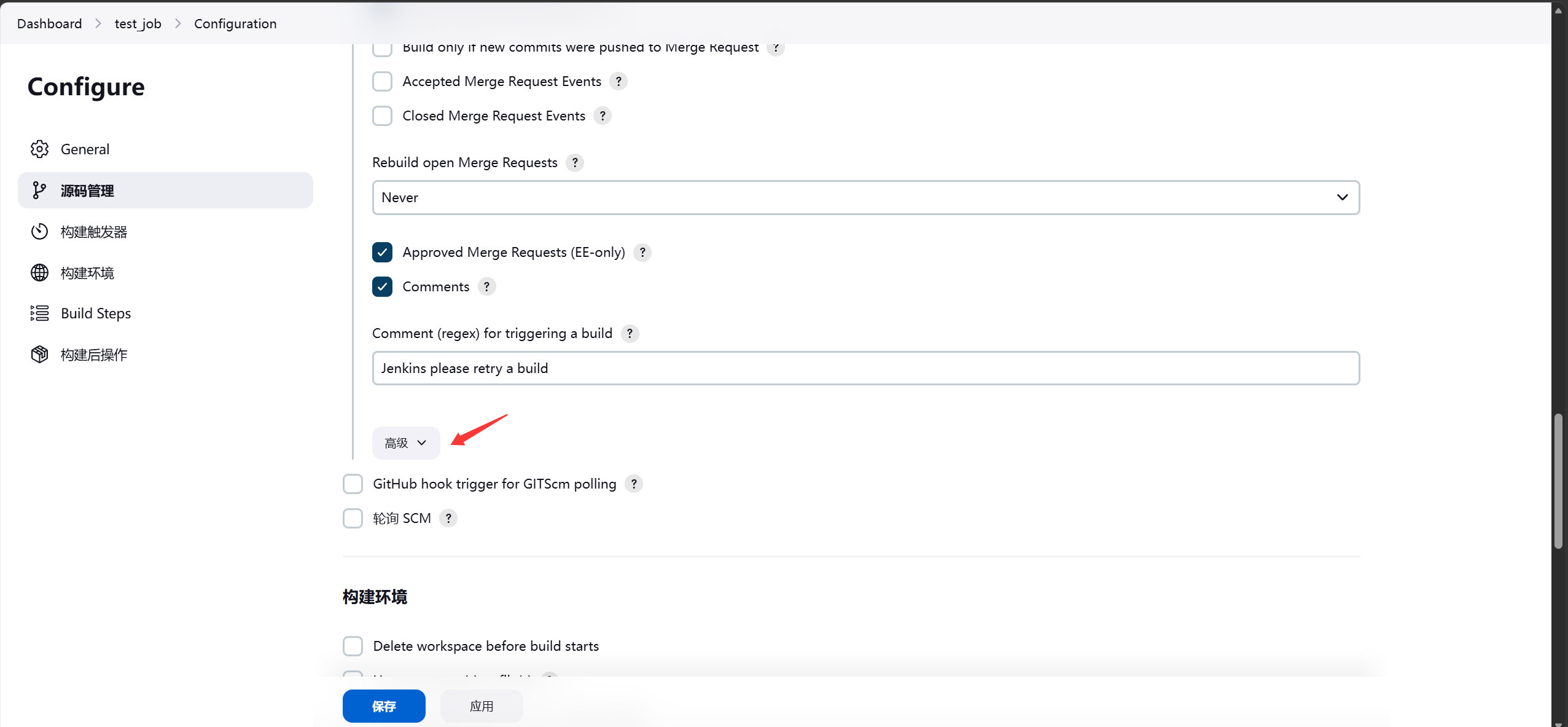
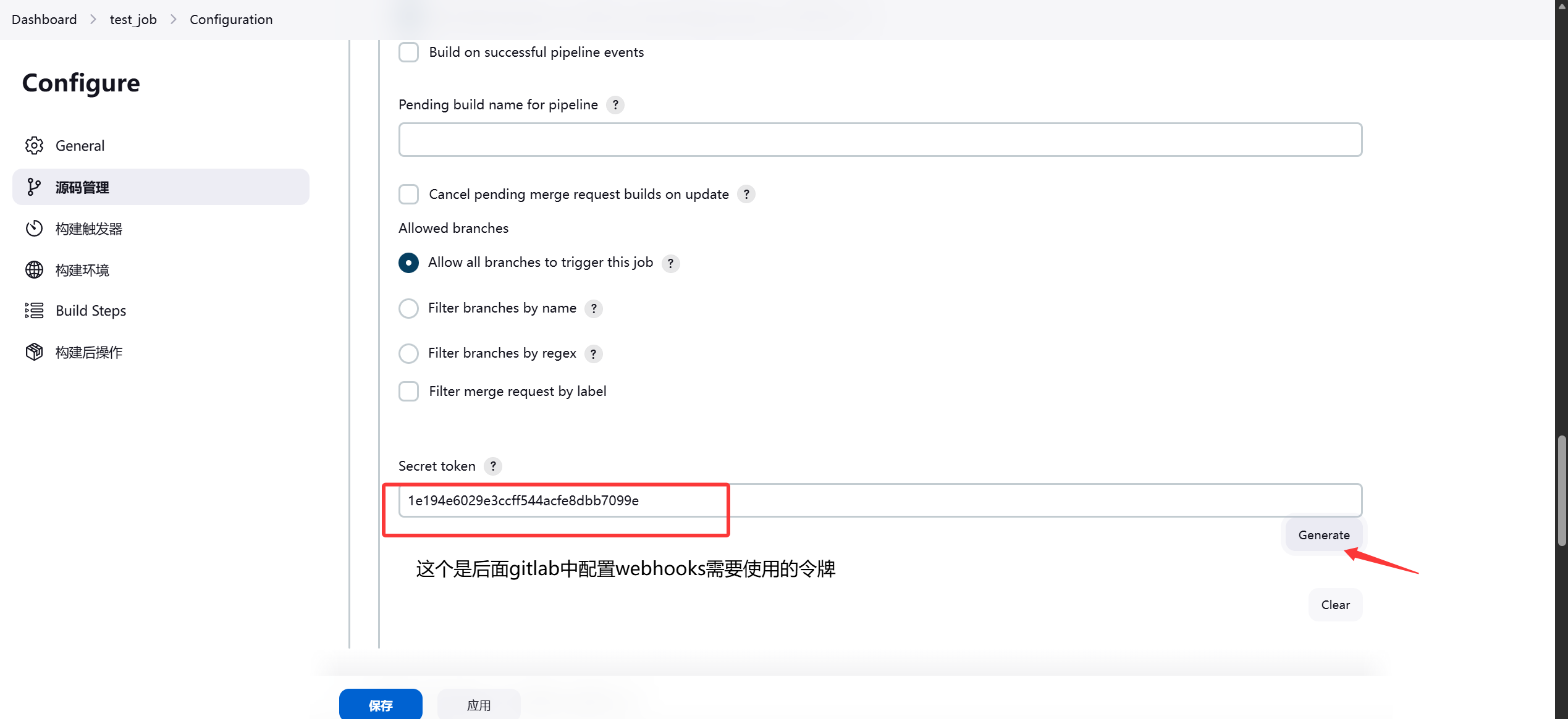
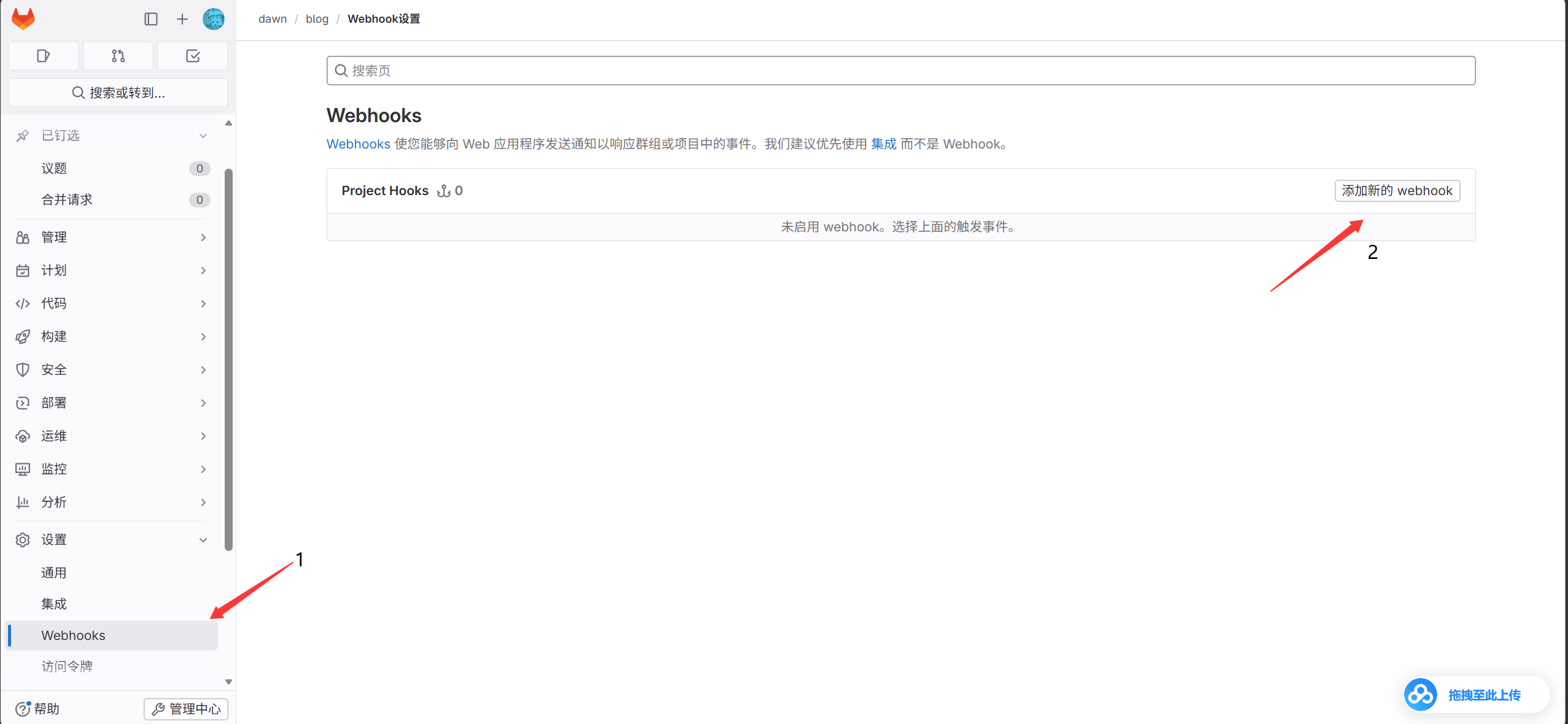
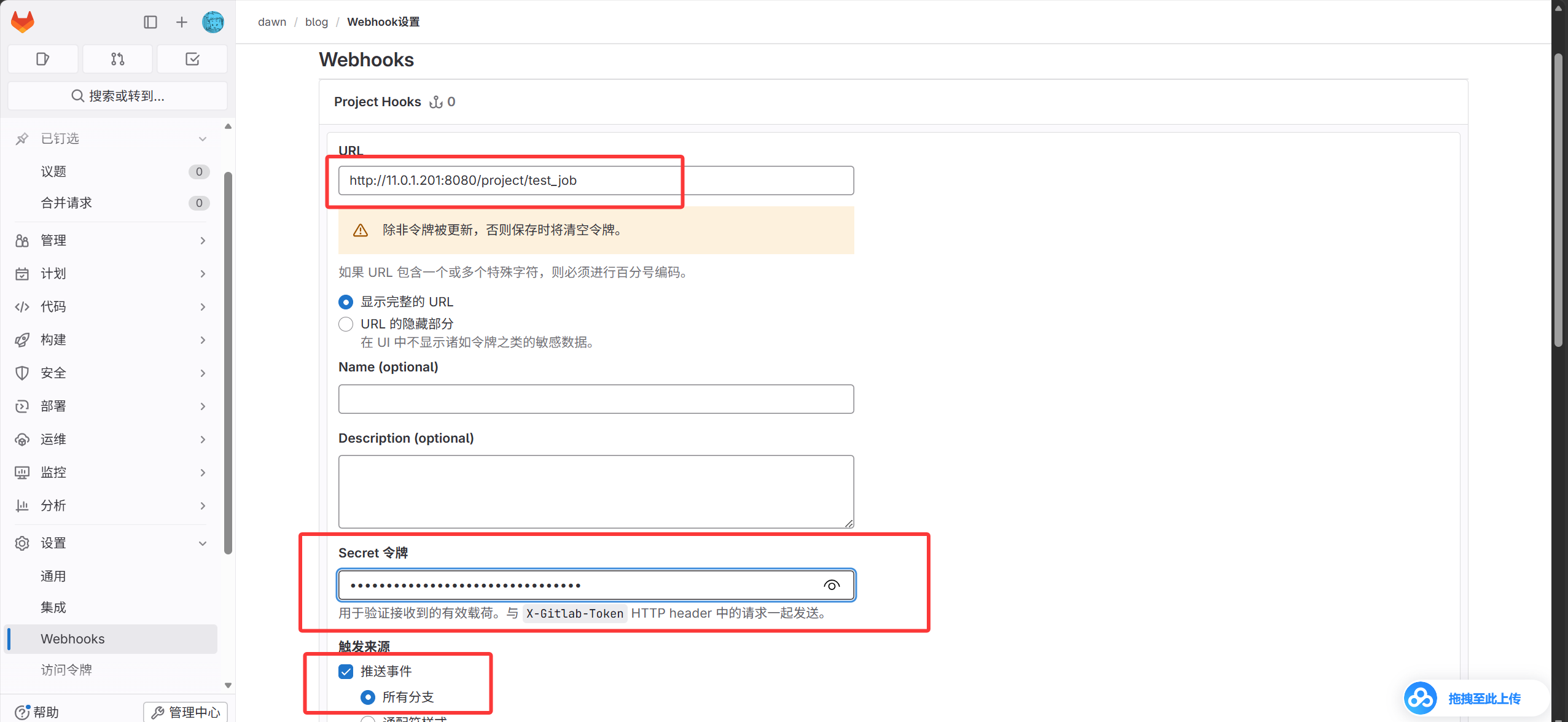
Save both sides, then test
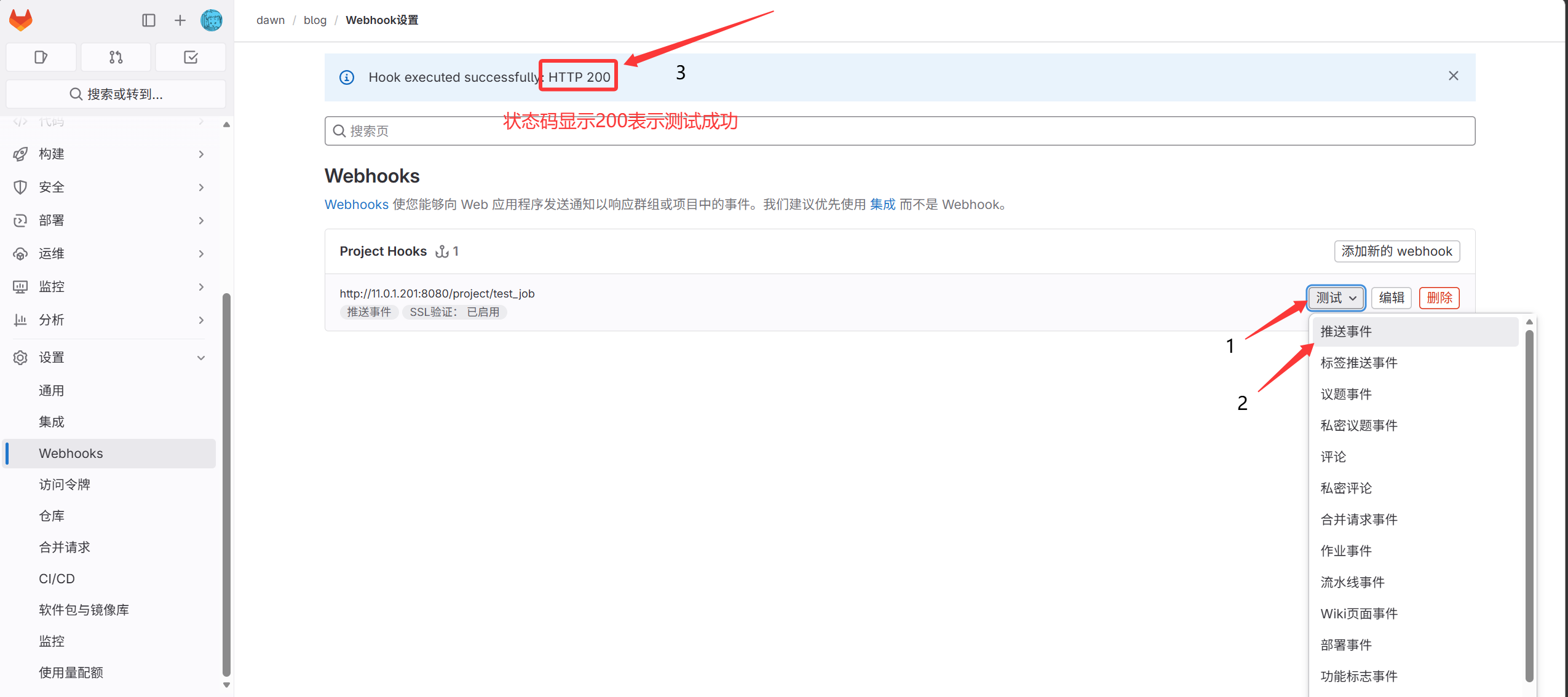
After modifying the project, push again to test
 1
 2
 3
 4
 5
 6
 7
 8
 9
10
11
12
13
14
15
16
17
18
19
20
21
22
23
24
25
26
27
28
29
|
[root@gitlab blog]#git branch
* master
[root@gitlab blog]#touch c.txt
[root@gitlab blog]#git add .
[root@gitlab blog]#git commit -m "test_v2"
[master 7b1f29e] test_v2
 1 file changed, 0 insertions(+), 0 deletions(-)
 create mode 100644 c.txt
[root@gitlab blog]#git pull origin master
remote: Enumerating objects: 17, done.
remote: Counting objects: 100% (9/9), done.
remote: Compressing objects: 100% (8/8), done.
remote: Total 17 (delta 0), reused 0 (delta 0), pack-reused 8
Unpacking objects: 100% (17/17), done.
From 11.0.1.200:dawn/blog
 * branch            master     -> FETCH_HEAD
Merge made by the 'recursive' strategy.
 a.txt | 1 +
 1 file changed, 1 insertion(+)
 create mode 100644 a.txt
[root@gitlab blog]#git push -u origin master
Counting objects: 7, done.
Delta compression using up to 2 threads.
Compressing objects: 100% (4/4), done.
Writing objects: 100% (5/5), 469 bytes | 0 bytes/s, done.
Total 5 (delta 2), reused 0 (delta 0)
To git@11.0.1.200:dawn/blog.git
   47f606c..91e80a5  master -> master
Branch master set up to track remote branch master from origin.
|
Automatic build succeeded